
Use the builder below to create a free appointment booking widget for your Google Sites website. Pick a template and click “Continue with this template” to set up your services and hours.
Schools, clubs, nonprofits and internal teams use Google Sites for practical pages, and booking time is one of the most common needs: parent-teacher meetings, tutoring sessions, office hours, coaching slots and IT help. This widget lets people pick a time within the hours you set and sends an email to you and to them. Bookings can also go to Google Calendar or Google Sheets, which many schools and teams already use. On Google Sites, use the inline form rather than the floating button.
How to add an Appointment Booking widget to Google Sites
1. Create your widget
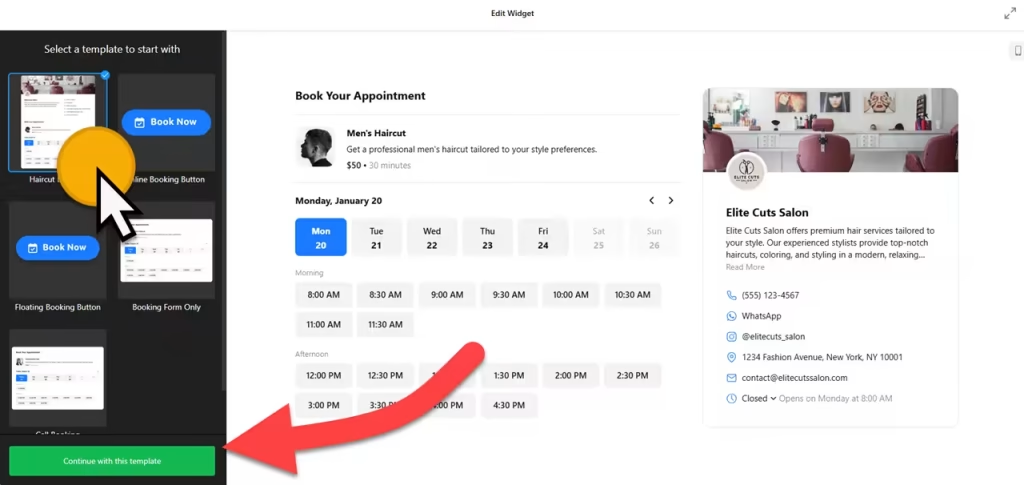
- Choose a template: Booking Form Only or Call Booking work best on Google Sites. Skip the Floating Booking button template.
- Add your services: each type of appointment, such as a 15-minute parent meeting or a 45-minute tutoring session, with a description, image, duration and price. Set the price to free if there’s no charge.
- Set your hours: when people can book, plus the minimum and maximum advance booking time.
- Finish the details: add contact details and a logo, choose the inline form embed type, turn on email notifications, and connect Google Calendar or Google Sheets.
- Save it: click “Add to website for free“, sign up on the next page and copy your embed code.
2. Add it to your Google Site
- Open your site in Google Sites and go to the page for bookings, for example Book a Meeting.
- In the Insert panel on the right, click Embed, then open the Embed code tab.
- Paste the booking code and click Next, then Insert.
- Drag the edges of the embed box until the whole form fits, including the list of services and the time slots. The form only shows inside this box, so a box that’s too small cuts it off.
- Publish the site and make a test booking to check that the emails arrive.
Where to put the Appointment Booking widget on your Google Site
- On a school or class site: parent-teacher meetings or tutoring sessions, with each meeting type set up as a service.
- On a club or team site: trial sessions, coaching slots or one-to-one catch-ups with a coach.
- On a nonprofit site: volunteer interviews or client appointments.
- On an internal company site: IT help, HR or training sessions that colleagues book themselves.
Do you need a paid Google Sites plan?
No. Embed code works on any Google Site. But every embed is boxed in its own isolated frame, and there’s no way to add code to every page at once. That’s why the floating button doesn’t suit Google Sites: it would only appear inside its box, not over the page. Choose the inline form and give the box enough room.
The widget has its own free plan: one widget, up to 200 views a month on unlimited websites, with a small Elfsight link. Paid widget plans start at $5 a month, billed yearly, for more views and no branding.
Appointment Booking widget features
- Templates such as Booking Form Only and Call Booking.
- Inline booking form that sits inside your Google Sites page.
- Several services, each with its own duration and a fixed, free, hidden or minimum price.
- Working hours with minimum and maximum advance booking times.
- Email notifications for you and the person booking.
- Google Calendar, Google Sheets and Zapier integrations, plus language settings and custom CSS.
Frequently asked questions
Can I add a booking form to Google Sites for free?
Yes. Google Sites accepts embed code, and the widget’s free plan includes one widget with up to 200 views a month on unlimited websites, with a small Elfsight link. Paid plans start at $5 a month, billed yearly.
Why is the booking form cut off on Google Sites?
The embed box is smaller than the form. Click the box in the editor, drag its edges until the services and time slots fit, and publish again.
Can I use the floating booking button on Google Sites?
Not usefully. Google Sites puts every embed in its own frame, so a floating button stays inside its box instead of floating over the page. Use the inline form instead, on a page linked from your menu.
Can bookings go into Google Calendar or Google Sheets?
Yes. Connect Google Calendar or Google Sheets in the widget’s integrations, so each booking lands where your school or team already keeps its schedule.
Can I change available times later?
Yes. Edit the hours or services in your Elfsight dashboard and save. The form on your Google Sites page updates on its own, so you don’t need to edit or republish the site.
More Google Sites widgets
- Appointment Booking widget
All templates and features - Google Sites Business Hours widget
Opening hours with an open-now status - Google Sites Event Calendar widget
Upcoming events in a calendar or list - Google Sites Restaurant Menu widget
Your menu with prices and photos - Google Sites Blog widget
Add a simple blog to any site - Essential Google Sites widgets
10+ widgets that work well on Google Sites