
Use the builder below to create a free testimonials slider for your WordPress site. Pick a template and click “Continue with this template” to add your first testimonial.
Business sites, consultants, course creators and WooCommerce shops on WordPress all benefit from showing what customers say. You could install a testimonials plugin and learn its settings, or build the slider here and paste it into a Custom HTML block. You type in the quotes yourself, with names, photos and ratings, and edit them later in the builder without touching the page.
How to add a Testimonials Slider widget to WordPress
1. Create your widget
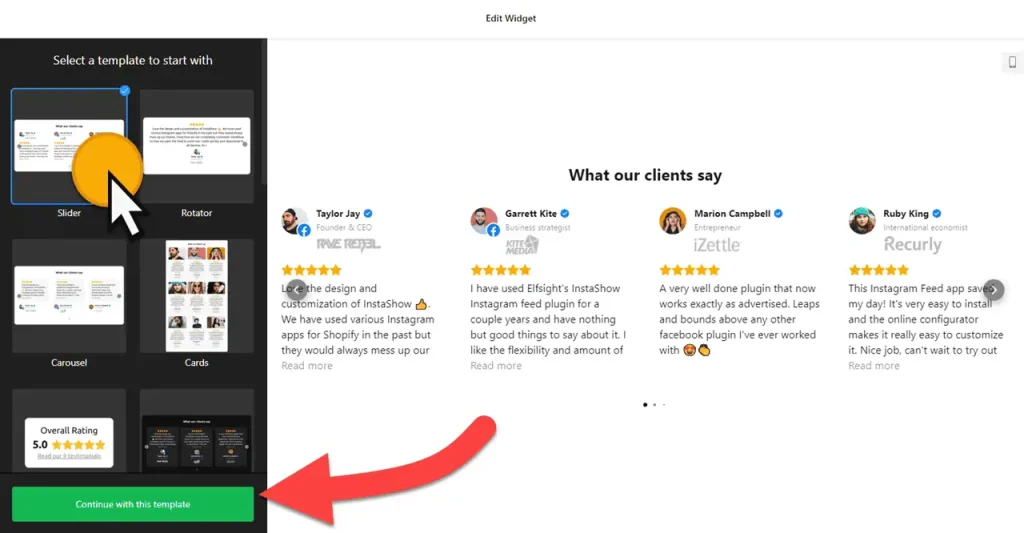
- Choose a template: Slider, Rotator, Carousel, Cards, Badge, Customer Story, List or Slider without Star Ratings.
- Add your testimonials: click “Add Testimonial” and enter the quote, star rating, name, caption, date and profile picture. Add a website URL, social profile, logo or photos if you have them, and drag testimonials into order.
- Pick a layout: Carousel, Grid, Masonry, List, Slider, Badge or Floating Badge, and set a maximum width that fits your theme’s content area.
- Style it: choose a card style, a color scheme and an accent color. Use the custom CSS field if you need a closer match to your theme.
- Save it: click “Add to website for free“, sign up on the next page and copy your embed code.
2. Add it to your WordPress site
- Open the page or post in the WordPress block editor.
- Click the block inserter (+) where the slider should go and add a Custom HTML block.
- Paste the slider code and switch to Preview inside the block to check it.
- Click Update or Publish and check the slider on the live page.
- Using Elementor? Drag in the HTML widget and paste the code. In the classic editor, paste it into the Text tab, not Visual.
- If the slider loads late or not at all, check your performance plugin. If it delays or combines JavaScript, exclude the widget script.
Where to put the Testimonials Slider widget on your WordPress site
- On the homepage of a business site, under your services, so new visitors see what clients say.
- On a sales or landing page, close to the buy or contact button.
- On a WooCommerce shop page, with quotes about your delivery, packaging and customer service.
- On a course or coaching page, using the Customer Story template for longer quotes from students.
Do you need a paid WordPress plan?
Self-hosted WordPress (WordPress.org) needs nothing extra. It accepts scripts out of the box, so the slider works in a Custom HTML block without a plugin. On WordPress.com, script tags only work on plans that allow plugins. On other plans they’re removed when you save, and the slider won’t appear.
For the Floating Badge layout on every page, add the Custom HTML block to an area that loads site-wide, such as your footer: in the Site Editor for block themes, or a footer widget area in classic themes. Menu names vary by theme. The widget’s own free plan covers one widget with up to 200 views a month on unlimited websites, with a small Elfsight link; paid widget plans start at $5 a month, billed yearly.
Testimonials Slider widget features
- Eight templates and seven layouts, from a simple slider to Masonry and a Floating Badge.
- Detailed testimonials with star rating, name, caption, date, profile picture, website, social profile, logo and photos.
- Drag-and-drop order, so your strongest quotes come first.
- Visibility controls for star ratings, dates and other testimonial details.
- Color scheme, accent color and custom CSS to fit your theme.
- Settings for language, Schema.org markup and custom JavaScript.
Frequently asked questions
Do I need a plugin to add the testimonials slider to WordPress?
Not on self-hosted WordPress. Paste the code into a Custom HTML block. On WordPress.com, you need a plan that allows plugins, because other plans strip script tags when you save.
Why doesn’t the slider show on my WordPress page?
The usual causes are a WordPress.com plan that removes scripts, code pasted into the Visual tab of the classic editor, or a performance plugin that delays JavaScript. For the last one, exclude the widget script.
Does the testimonials slider work with Elementor?
Yes. Drag the HTML widget into your layout, paste the slider code and update the page.
How do I show the Floating Badge on every page?
Put the code in an area that loads on every page, such as a footer template part in the Site Editor or a footer widget area in a classic theme. A block inside one page only shows on that page.
Can I add new testimonials later?
Yes. Add or edit them in your Elfsight dashboard and save. The slider on your WordPress site updates automatically, so you don’t need to replace the code.
More WordPress widgets
- Testimonials Slider widget
All templates and features - WordPress All-in-One Reviews widget
Reviews from 50+ platforms in one feed - WordPress Google Reviews widget
Your Google Business reviews and rating - WordPress Contact Form widget
A simple contact form - WordPress Instagram Feed widget
Your latest Instagram posts and reels - How to add embed code to any website
Where to paste widget code on every website builder