
Use the builder below to create a free AI chatbot for your WordPress website. Enter your website’s address and click “Create” to set up an assistant that learns from your content.
WordPress runs blogs, business sites and WooCommerce stores, and many of them already hold the answers visitors look for, spread across posts, policy pages and product descriptions. An AI chatbot gives visitors a quicker route: they type a question and get an answer based on your content. You don’t need another plugin. Build the assistant in your browser, train it on your site and files, and paste the code into a Custom HTML block.
How to add an AI Chatbot widget to WordPress
1. Create your widget
- Create your agent: enter your WordPress site’s address and click “Create“. The builder scans the site, builds a knowledge base and gives the agent a name, icon, role and tone of voice. No site yet? Click “Enter details manually” and describe your business in a couple of lines.
- Train it in the Knowledge tab: upload documents such as shipping and returns policies or guides (PDF, TXT, JSON, DOCX, PPTX, HTML, MD), add common questions and answers, and describe your products and services.
- Instruct it in the Agent tab: choose a role, tone of voice and answer length, write a greeting with suggested questions, and add conversation rules for how to handle customer questions.
- Add skills in the Skills tab: a lead form, action buttons, a follow-up message when a visitor goes quiet, handoff to a person by email, call or WhatsApp, and bookings through Calendly or Cal.com.
- Style and save it: in Settings, choose a floating bubble, floating input or embedded chat window and set the theme and colors to suit your theme, then click “Add to website for free“, sign up and copy your embed code.
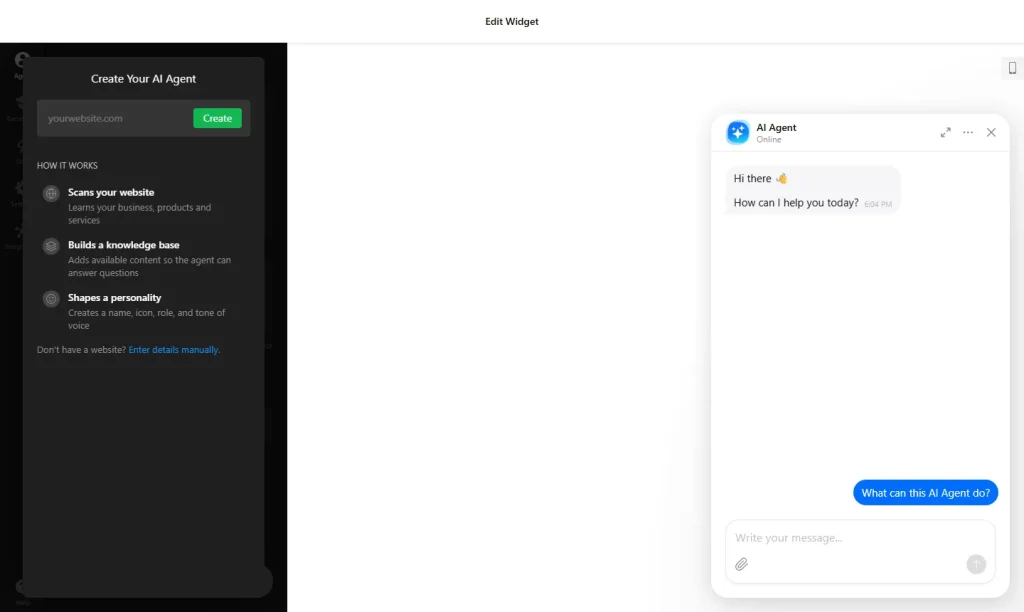
2. Add it to your WordPress site
- Edit the page or post in the block editor.
- Click the block inserter (+) and add a Custom HTML block.
- Paste the chatbot code and switch to Preview inside the block.
- On Elementor, drag in the HTML widget and paste the code. In the classic editor, use the Text tab, not Visual.
- Click Update or Publish, then ask the chatbot a test question on the live page.
Where to put the AI Chatbot widget on your WordPress site
- On your Contact or Support page, to handle common questions before they reach your inbox.
- On WooCommerce shipping, returns or FAQ pages, with those policies in its training so shoppers get consistent answers.
- On popular blog posts or guides, so readers can ask follow-up questions about the topic.
- Across the site, by adding a Custom HTML block to a footer or sidebar area if your theme allows it.
Do you need a paid WordPress plan?
Not on self-hosted WordPress (WordPress.org): it accepts the chatbot script out of the box, with no plugin. On WordPress.com, script tags only work on plans that allow plugins; on other plans they’re removed when you save.
If you use a performance plugin that delays or combines JavaScript, exclude the chatbot script when it loads late or not at all. The chatbot’s free plan includes 50 messages a month and 10 million characters of knowledge storage, with a small Elfsight link; the chatbot pauses when the monthly limit is reached, and paid plans include more messages.
AI Chatbot widget features
- Website analysis: enter your URL and the assistant learns the basics of your business. No site? Add details by hand.
- Training sources: PDF, TXT, JSON, DOCX, PPTX, HTML and MD files, questions and answers, and free text about your products and services.
- Agent settings: role, tone of voice, answer length and conversation rules for what it should or shouldn’t say.
- Skills: lead forms, action buttons, follow-up messages, handoff to a person, and bookings through Calendly or Cal.com.
- Replies in the visitor’s language and remembers earlier messages in the chat.
- Floating bubble, floating input or embedded chat window, with themes and colors to match your WordPress theme.
Frequently asked questions
Do I need a chatbot plugin for WordPress?
No. Paste the code into a Custom HTML block on self-hosted WordPress. On WordPress.com you need a plan that allows plugins, because scripts are removed on other plans.
Why is the AI chatbot not loading on WordPress?
Check that the code is in a Custom HTML block or the classic editor’s Text tab, that your WordPress.com plan allows scripts, and that a performance plugin isn’t delaying the chatbot script. Exclude it from those optimizations if needed.
Can it answer questions about my WooCommerce store?
Yes, if you train it on that information. Enter your site address, upload documents, and add questions and answers about shipping, returns and products.
Does the AI chatbot work with Elementor?
Yes. Drag the HTML widget into your Elementor layout and paste the chatbot code.
Is the AI chatbot free?
Yes. The free plan includes all core chatbot features, 10 million characters of knowledge storage and 50 messages a month, with a small Elfsight branding link. The chatbot pauses when the monthly limit is reached; paid plans include more messages, such as 300 a month on Basic.
More WordPress widgets
- AI Chatbot widget
All templates and features - WordPress WhatsApp Chat widget
A WhatsApp chat button or bubble - WordPress Contact Form widget
A simple contact form - WordPress Google Reviews widget
Your Google Business reviews and rating - WordPress Instagram Feed widget
Your latest Instagram posts and reels - How to add embed code to any website
Where to paste widget code on every website builder