
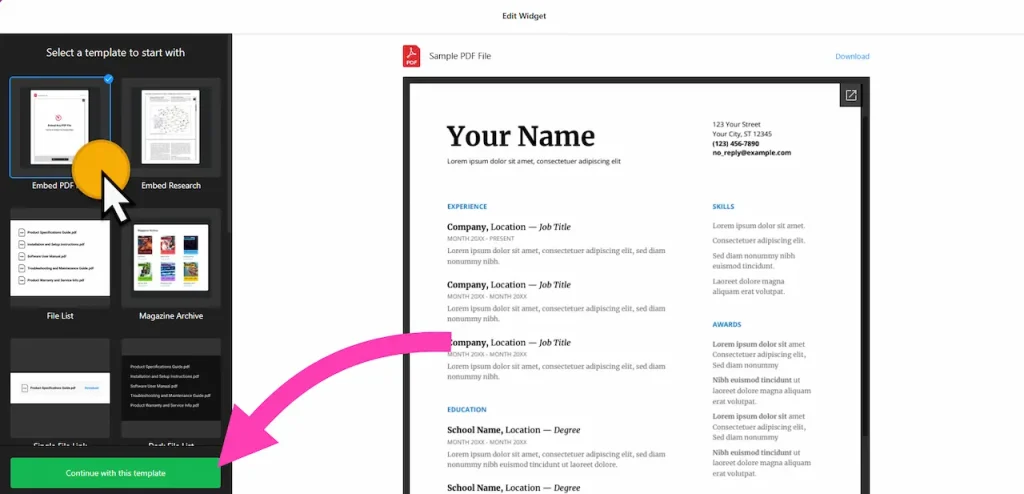
Use the builder below to create a free PDF viewer for your WordPress site. Pick a template, click “Continue with this template” and upload your PDF files.
WordPress sites collect PDFs: menus, brochures, price lists, product manuals, newsletters, policies. A plain link to the file sends visitors away from the page. This PDF viewer shows the document right on the page, or lists several files with preview images, and you decide whether people can download them. It goes in with a Custom HTML block, so you don’t need a PDF plugin.
How to add a PDF Viewer widget to WordPress
1. Create your widget
- Choose a template: Embed PDF File (best for a single document), File List, Magazine Archive or Single File Link.
- Add your PDFs: give the widget a title and upload your files. Drag and drop them to set the order, and add a preview image if you like.
- Pick a layout: File Viewer, Grid or List.
- Set downloads and style: under Download Settings, choose whether visitors can download the files. Then change the colors and fonts, with custom CSS and JavaScript fields for anything else.
- Save it: click “Add to website for free“, sign up on the next page and copy your embed code.
2. Add it to your WordPress site
- Edit the page or post in the WordPress block editor.
- Click the block inserter (+) and add a Custom HTML block where the PDF should appear.
- Paste the widget code, then switch to Preview inside the block to check it.
- Click Update or Publish and open the live page.
- Using a different editor? In Elementor, drag in the HTML widget and paste the code there. In the classic editor, paste it into the Text tab, not the Visual tab.
- If you use a caching or performance plugin that delays or combines JavaScript, exclude the widget script if the viewer loads late or not at all, then clear the cache.
Where to put the PDF Viewer widget on your WordPress site
- On a restaurant or café site: your menu as an embedded PDF on the Menu page.
- On WooCommerce product pages: a manual, size guide or spec sheet in the product description.
- On business service pages: brochures, price lists and company profiles next to the details they back up.
- On a blog or member site: a Magazine Archive of past newsletters or issues.
- On policy and resource pages: forms and documents as a File List that people can download.
Do you need a paid WordPress plan?
Not on self-hosted WordPress (WordPress.org). It accepts the widget script in a Custom HTML block out of the box, with no plugin to install. WordPress.com is different: script tags only work on plans that allow plugins. On other WordPress.com plans, WordPress removes the script when you save, and the viewer won’t show.
The widget’s own free plan covers one widget with up to 200 views a month on unlimited websites, with a small Elfsight link. Paid plans start at $5 a month, billed yearly. If you need several PDFs on one page, the File List, Grid or Magazine Archive options keep them all in a single widget.
PDF Viewer widget features
- Four templates: Embed PDF File, File List, Magazine Archive and Single File Link.
- Three layouts: File Viewer, Grid and List.
- Multiple files with drag-and-drop ordering and preview images.
- Download settings to let visitors save the PDFs, or not.
- Colors and fonts, plus custom CSS and JavaScript fields.
Frequently asked questions
Do I need a plugin to show PDFs in WordPress?
Not on self-hosted WordPress. Paste the widget code into a Custom HTML block and it works without a plugin. On WordPress.com, scripts only work on plans that allow plugins.
Why isn’t the PDF viewer showing on my WordPress page?
Check that the code is in a Custom HTML block, not a paragraph block. On WordPress.com, check that your plan allows plugins. If you use a performance plugin that delays JavaScript, exclude the widget script and clear the cache.
Can I add the PDF viewer with Elementor?
Yes. Drag the HTML widget onto the page in Elementor, paste the code and update the page.
Can visitors download the PDF?
Only if you allow it. Turn downloads on or off under Download Settings in the builder.
Can I replace the PDF later?
Yes. Upload the new file in your Elfsight dashboard and save. The viewer on your WordPress page updates on its own, so you don’t need to paste the code again.
More WordPress widgets
- PDF Viewer widget
All templates and features - WordPress Photo Gallery widget
Image galleries with a lightbox - WordPress Before & After Slider widget
Compare two images with a slider - WordPress Audio Player widget
Play music and audio files - WordPress Background Music widget
Music that plays in the background - How to add embed code to any website
Where to paste widget code on every website builder