
Use the builder below to create a free restaurant menu for your WordPress website. Pick a template, click “Continue with this template” and add your dishes.
On a WordPress restaurant site, the menu is often a PDF link or a menu plugin that needs its own updates. This widget is simpler: build the menu in your browser, paste it into a Custom HTML block, and change prices later in your Elfsight dashboard without editing the page. Each item can show a price, photo, badges and nutrition info. It works in the block editor, in Elementor and in the classic editor.
How to add a Restaurant Menu widget to WordPress
1. Create your widget
- Choose a template: start from Fast Food Restaurant, Family Restaurant, Coffee House, Healthy Restaurant or Cocktail Bar and click “Continue with this template“.
- Add your menus: in the Menus tab, click “Add Menu” and enter a name, caption and icon for each one.
- Add items: click “Add item” and fill in the caption, price, image, badges and, if you like, calories, fat, carbs and protein.
- Pick layouts and colors: tabs or a list for menus, list, masonry or tabs for sections, then a color scheme, accent color and font.
- Save it: click “Add to website for free“, sign up and copy your embed code.
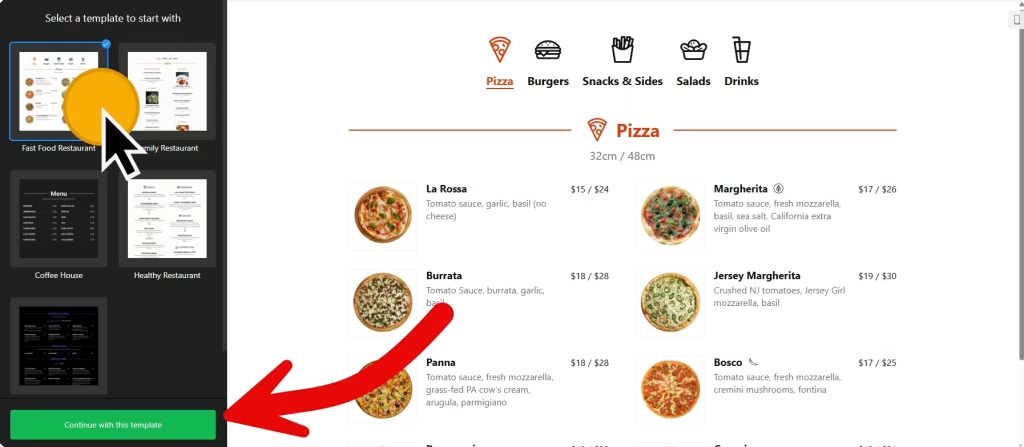
2. Add it to your WordPress site
- Open your menu page in the WordPress block editor.
- Click the block inserter (+) and add a Custom HTML block where the menu should go.
- Paste the menu code, then click Preview inside the block to check it.
- Click Update or Publish and view the live page.
- Using Elementor? Drag in the HTML widget and paste the code there. In the classic editor, paste it into the Text tab, not Visual.
Where to put the Restaurant Menu widget on your WordPress site
- On a Menu page linked from your main navigation, replacing a PDF download.
- On your homepage, below your opening hours and address, with a short menu of favorites.
- In a blog post about a new seasonal menu, so readers see the dishes and prices right in the post.
- On a catering or private events page, with a separate menu for each package.
Do you need a paid WordPress plan?
On self-hosted WordPress (WordPress.org), no. Scripts work out of the box, so the Custom HTML block shows the menu without a plugin. On WordPress.com, script tags only work on plans that allow plugins. On other WordPress.com plans the script is removed when you save, and the menu won’t appear.
If you use a performance plugin that delays or combines JavaScript, exclude the widget script if the menu loads late or not at all, and clear the cache after adding it. The widget’s free plan covers one widget with up to 200 views a month on unlimited websites, with a small Elfsight link; paid widget plans start at $5 a month, billed yearly.
Restaurant Menu widget features
- Templates such as Fast Food Restaurant, Family Restaurant, Coffee House, Healthy Restaurant and Cocktail Bar.
- Several menus, each with a name, caption and icon.
- Item details: caption, price, image, badges and nutrition info (calories, fat, carbs and protein).
- Layouts: menus as tabs or a list; sections as a list, masonry or tabs; item popups and visibility settings.
- Appearance: light, dark or custom color scheme, accent color and font, plus custom CSS and JavaScript for your own tracking code.
- No plugin to maintain: edits in your Elfsight dashboard appear on your site automatically.
Frequently asked questions
Do I need a plugin to add the menu to WordPress?
Not on self-hosted WordPress. Paste the code into a Custom HTML block and it works. On WordPress.com you need a plan that allows plugins, because other plans remove script tags.
Why isn’t my menu showing on WordPress?
Check that you used a Custom HTML block, not a paragraph or the Visual tab. On WordPress.com, check your plan. If you use a caching or performance plugin, exclude the widget script from delayed JavaScript and clear the cache.
Does the menu work with Elementor?
Yes. Drag the HTML widget into your Elementor layout and paste the menu code. It also works in the classic editor’s Text tab.
Can I show the same menu on several pages?
Yes. Paste the same code on each page, for example your homepage and your menu page. Every view counts toward your plan’s monthly limit, which is 200 views on the free plan.
Do I need to edit WordPress when prices change?
No. Change the price in your Elfsight dashboard and save. The menu on your WordPress site updates automatically.
More WordPress widgets
- Restaurant Menu widget
All templates and features - WordPress Appointment Booking widget
Online booking with time slots - WordPress Business Hours widget
Opening hours with an open-now status - WordPress Event Calendar widget
Upcoming events in a calendar or list - WordPress Google Reviews widget
Your Google Business reviews and rating - How to add embed code to any website
Where to paste widget code on every website builder