
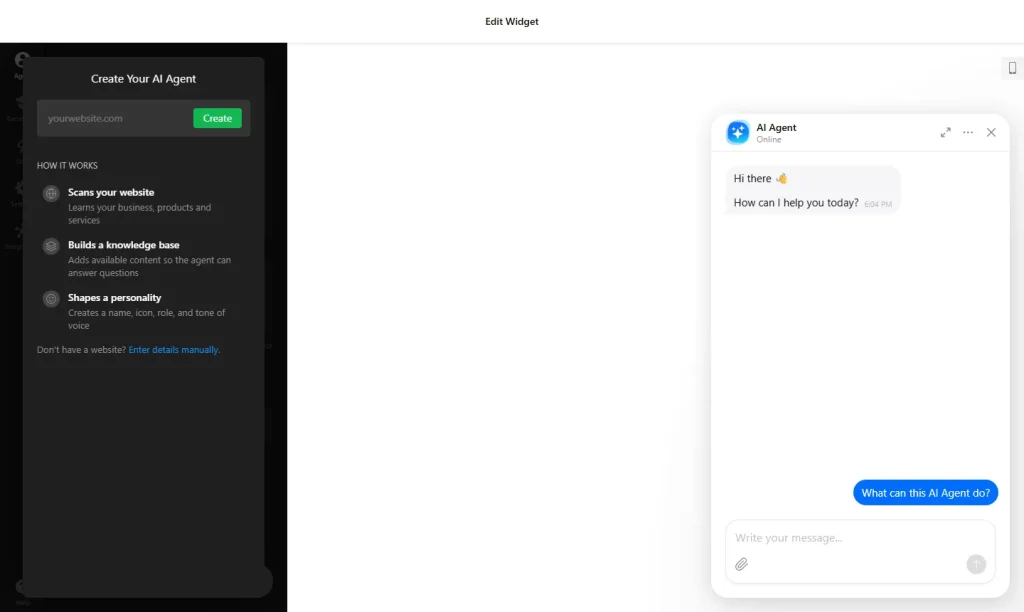
Use the builder below to create a free AI chatbot for your Webflow website. Enter your website’s address and click “Create” to set up an assistant that learns from your content.
Webflow is a popular choice for the marketing sites and landing pages of startups, software products and agencies. Visitors there arrive with specific questions about features, pricing, integrations and timelines. An AI chatbot answers them from your own content: your site, product docs and common questions. You train it in the builder, match the theme and colors to your design, and add it with a Code Embed element or the site-wide footer code.
How to add an AI Chatbot widget to Webflow
1. Create your widget
- Create your agent: enter your Webflow site’s address and click “Create“. The builder scans the site, builds a knowledge base and gives the agent a name, icon, role and tone of voice. No site yet? Click “Enter details manually” and describe your business in a couple of lines.
- Train it in the Knowledge tab: upload product docs, pitch decks or guides (PDF, DOCX, PPTX, MD, HTML, TXT or JSON), add common questions and answers, and describe your services in text.
- Set the conversation in the Agent tab: choose a role, tone of voice and answer length, write a greeting and suggested questions, and add conversation rules for questions about features, pricing or timelines.
- Add skills in the Skills tab: a lead form, action buttons, a follow-up message when a visitor goes quiet, handoff to a person by email, call or WhatsApp, and bookings through Calendly or Cal.com.
- Match your brand and save it: in Settings, choose a floating bubble, floating input or embedded chat window and set the theme and colors to fit your design, then click “Add to website for free“, sign up and copy your embed code.
2. Add it to your Webflow site
- Open the page in the Webflow Designer and open the Add panel.
- Drag a Code Embed element where the chatbot should appear, for example below your pricing table.
- Paste the chatbot code and click Save & Close. The canvas won’t show it, because scripts don’t render inside the Designer.
- For a chatbot on every page, paste the code under Site settings › Custom code › Footer code instead.
- Publish the site, or use Preview, and ask the chatbot a test question.
Where to put the AI Chatbot widget on your Webflow site
- On your pricing page, to answer plan and billing questions while visitors compare options.
- On campaign landing pages, with the offer details added to its training.
- On feature or product pages, using your product docs as training files.
- Site-wide through the footer code, so visitors can ask from the blog, case studies or any CMS template page.
Do you need a paid Webflow plan?
Yes. Webflow requires a paid site plan or workspace plan for the Code Embed element and for custom code, including the site-wide footer code. Check your plan before you build the chatbot.
Scripts don’t render inside the Designer canvas, so test on a published or preview page. The chatbot’s free plan includes 50 messages a month and 10 million characters of knowledge storage, with a small Elfsight link; the chatbot pauses when the monthly limit is reached, and paid plans include more messages.
AI Chatbot widget features
- Learns from your website when you enter its URL, or from business details you add manually.
- Trains on your content: PDF, TXT, JSON, DOCX, PPTX, HTML and MD files, questions and answers, and free text.
- Agent settings: role, tone of voice, answer length and conversation rules for what it should or shouldn’t say.
- Skills: lead forms, action buttons, follow-up messages, handoff to a person, and bookings through Calendly or Cal.com.
- Replies in the visitor’s language and remembers earlier messages in the chat.
- Floating bubble, floating input or embedded chat window, with themes and colors to fit your Webflow design.
Frequently asked questions
Which Webflow plan do I need for the AI chatbot?
A paid site plan or workspace plan. Webflow requires one for the Code Embed element and for custom code in site settings.
Why can’t I see the chatbot in the Webflow Designer?
Scripts don’t render inside the Designer canvas. Publish the site or open Preview to see and test the chatbot.
Should I use a Code Embed or the footer code?
Use a Code Embed to place the chatbot on one page in a specific spot. Use Site settings › Custom code › Footer code to load it on every page.
Can I match the chatbot to my brand?
Yes. Choose a theme and colors in Settings, and give the agent a name, icon and tone of voice.
Can I train it on my product docs?
Yes. Upload PDF, DOCX, PPTX, MD, HTML, TXT or JSON files in the Knowledge tab, and add questions and answers for anything the docs don’t cover.
More Webflow widgets
- AI Chatbot widget
All templates and features - Webflow WhatsApp Chat widget
A WhatsApp chat button or bubble - Webflow Contact Form widget
A simple contact form - Webflow Google Reviews widget
Your Google Business reviews and rating - Webflow Instagram Feed widget
Your latest Instagram posts and reels - How to add embed code to any website
Where to paste widget code on every website builder