
Use the builder below to create a free popup for your Shopify store. Pick a template and click “Continue with this template” to get started.
Shopify stores often use a popup for a welcome discount, news of a new collection, or a last offer when a shopper is about to leave. This builder makes the popup in your browser, including the coupon, form or timer inside it and the rules for when it shows. You then add it to your theme with a Custom Liquid section, without installing another app.
How to add a Popup widget to Shopify
1. Create your widget
- Choose a template: New Collection (a coupon popup), Exit Intent, 3-day only, Special for You and recent sales are among more than 20.
- Add your content: describe the offer to the AI Popup Generator, or add elements yourself: a coupon, a countdown timer, a product image, a sign-up form or a button.
- Pick a layout: a centered modal, a side pane, a slide-in, or a top or bottom bar. Add a close button, a backdrop, or a reopen button so shoppers can find the offer again.
- Set display rules and triggers: choose pages, devices, a schedule for the sale dates and how often each shopper sees it, then pick page load, time on page, click, scroll or exit intent.
- Save it: click “Add to website for free“, sign up and copy your embed code.
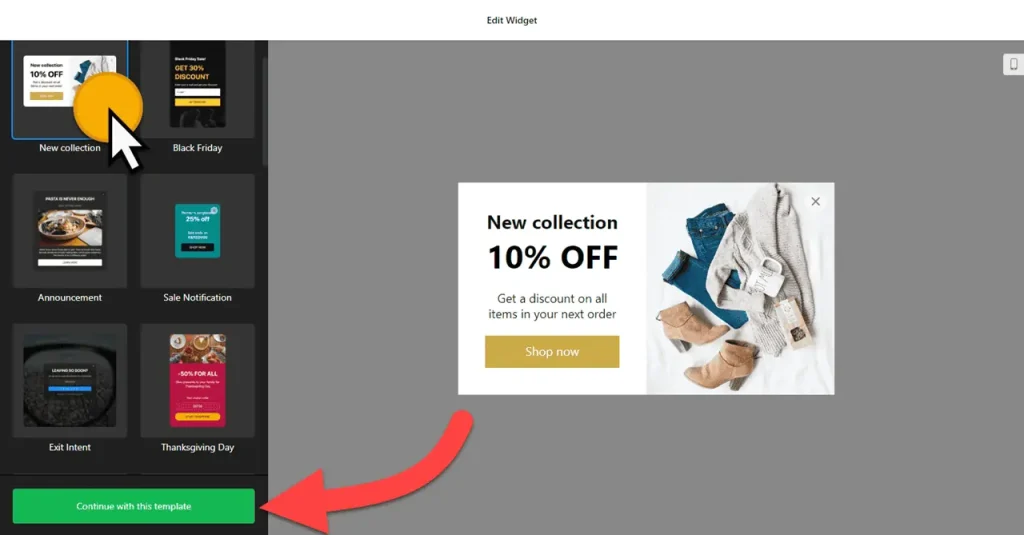
2. Add it to your Shopify site
- In your Shopify admin, go to Online Store › Themes and click Customize.
- For a store-wide popup, click Add section in the theme’s footer area and choose Custom Liquid. The footer appears on every page, so the popup can too.
- For one template only, use the page selector at the top to open it, for example the product page, then click Add section › Custom Liquid.
- Paste the popup code into the Liquid code box and click Save.
- Open your store and trigger the popup to test it: wait, scroll or move to leave, depending on your settings. Check it on your phone too.
When and where to show a popup on your Shopify store
- A welcome discount across the store, using the New Collection coupon template, a few seconds after a first-time visitor arrives.
- An exit-intent offer on product pages, reminding shoppers about free shipping or a small discount before they leave.
- A new collection or sale announcement on the home page, with a popup link to the collection.
- A bottom bar on every page for shipping cut-off dates or store news, which is less intrusive than a full modal.
Do you need a paid Shopify plan?
No plan upgrade or extra app is needed. The popup goes into a Custom Liquid section, and a section added to a template appears on every page that uses that template. Put it in the footer area for the whole store, or on one template for one type of page, then fine-tune with the popup’s own page, device, schedule and frequency settings.
The widget’s free plan covers one widget with up to 200 views a month, with a small Elfsight link. A busy store can pass 200 views quickly, so check your traffic; paid widget plans start at $5 a month, billed yearly.
Popup widget features
- 20+ responsive templates for coupons, announcements, exit intent, newsletter sign-ups and recent sales.
- 14 elements, including coupon, timer, form, image, video and button, or the AI Popup Generator.
- Layouts: modal, left or right pane, left or right slide-in, top or bottom bar.
- Triggers: on page load, time on page, on click, on scroll and exit intent.
- Display rules by page, device, schedule and frequency per shopper.
- Popup link to send shoppers to a collection or product, plus custom CSS and JavaScript.
Frequently asked questions
Do I need a Shopify app for a popup?
No. Paste the embed code into a Custom Liquid section in the theme editor. There’s nothing to install from the Shopify App Store.
How do I show the popup on every page of my Shopify store?
Add the Custom Liquid section to your theme’s footer area, which appears site-wide. Then use the popup’s display settings if you want to leave out certain pages.
Can the popup show a discount code?
Yes. Start from the New Collection coupon template or add a Coupon element, and enter a discount code you’ve already created in your Shopify store.
Why does my popup show on pages I didn’t expect?
A section added to a template shows on every page using that template, and the footer appears everywhere. Limit the pages in the popup’s display settings, or move the section to a different template.
How do I stop the popup showing to the same shopper every visit?
Set how often each visitor sees it in the display settings, for example once. Add a reopen button if you want shoppers to be able to bring the offer back.
More Shopify widgets
- Popup widget
All templates and features - Shopify Countdown Timer widget
Count down to a sale or launch - Shopify Google Reviews widget
Your Google Business reviews and rating - Shopify Contact Form widget
A simple contact form - Shopify Instagram Feed widget
Your latest Instagram posts and reels - How to add embed code to any website
Where to paste widget code on every website builder