
Use the builder below to create a free before and after slider for your Shopify store. Pick a template, click “Continue with this template” and upload your photos.
Some products sell on visible results: skincare, hair care, cleaning products, car care, furniture restoration, photo presets. A before-and-after slider lets shoppers drag a divider and see the difference for themselves. Build the slider here, then add it to your Shopify theme with a Custom Liquid section, on your home page, product pages, collection pages or a dedicated results page.
How to add a Before & After Slider widget to Shopify
1. Create your widget
- Choose a template: Product comparison is made for showing what a product does. Simple comparison, Retouch Slider and List of Works are also available, and all are responsive.
- Add your comparison sets: click “Add Set” and upload the before and after photos. Add labels and captions, and add more sets for more products or customers.
- Pick a layout: List shows the comparisons one after another, Carousel lets shoppers move through them. Set the width in px or % to match your theme.
- Adjust the settings: image ratio, slider direction, label position, divider, interaction behavior and full-screen mode. Then style the background, labels, captions and controls to suit your store.
- Save it: click “Add to website for free“, sign up on the next page and copy your embed code.
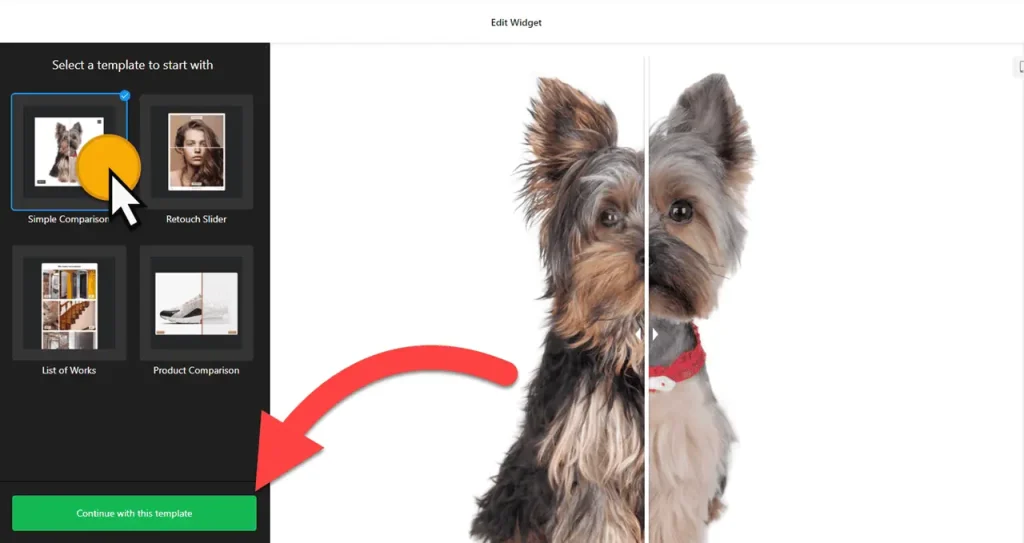
2. Add it to your Shopify site
- In your Shopify admin, go to Online Store › Themes and click Customize.
- Use the page selector at the top to open the template you want: the home page, the default product template, a collection template or a custom page.
- Click Add section, choose Custom Liquid and paste the slider code.
- Drag the section into position, for example just below the main product information or above your reviews.
- Click Save, then check the live store on a computer and on a phone.
Where to put the before and after slider in your Shopify store
- On the default product template, if the comparison applies to every product, such as a brand-wide result. A section added there shows on all product pages.
- On your home page, as a carousel of your best results between your featured collection and newsletter sections.
- On a collection template, above or below the product grid, to show what the whole range does.
- On a custom Results or Gallery page, using the List of Works template to show many comparisons.
Do you need a paid Shopify plan?
You don’t need an app or a plan upgrade for this. The slider goes into your theme through the Custom Liquid section in the theme editor, which you reach from Online Store › Themes › Customize. Menu names can change slightly as Shopify updates the editor.
Plan where it goes before you save. A section added to a template appears on every page that uses that template, so a slider on the default product template shows on all product pages. If a comparison only fits one product, put it on a custom page or choose photos that apply to the whole range. The widget’s free plan covers one widget with up to 200 views a month on unlimited websites, with a small Elfsight link. A busy store will likely need a paid widget plan, which starts at $5 a month, billed yearly.
Before & After Slider widget features
- Four responsive templates, including Product comparison and Retouch Slider.
- Multiple comparison sets, each with labels and captions.
- List or Carousel layout, with the width set in px or %.
- Slider settings: image ratio, slider direction, label position, divider and interaction behavior.
- Full-screen mode, appearance controls, and custom CSS and JavaScript fields.
Frequently asked questions
Where do I paste the before and after slider code in Shopify?
Go to Online Store › Themes › Customize, open the template you want with the page selector, click Add section › Custom Liquid, paste the code and save.
Why does the slider show on all my product pages?
You added it to the default product template, which every product uses. Move it to a custom page, or use photos that work for every product.
Do I need a Shopify app for a before and after slider?
No. You build the slider in your browser and paste its code into a Custom Liquid section in your theme editor.
Can I show several before and after comparisons in one slider?
Yes. Add a comparison set for each pair of photos and choose the List or Carousel layout. They all stay in one widget.
Can I change the photos later?
Yes. Edit the widget in your Elfsight dashboard and save. The slider in your store updates on its own, so you don’t need to edit your theme again.
More Shopify widgets
- Before & After Slider widget
All templates and features - Shopify Photo Gallery widget
Image galleries with a lightbox - Shopify Audio Player widget
Play music and audio files - Shopify Google Reviews widget
Your Google Business reviews and rating - Shopify Contact Form widget
A simple contact form - How to add embed code to any website
Where to paste widget code on every website builder