
Use the widget builder below to create your AI Chatbot widget for free. Enter your website’s address and click “Create”: the builder scans your site, builds a knowledge base and sets up your AI agent.
Step-by-step guides: Wix Squarespace WordPress Shopify Webflow
How to use AI Chatbot Widget Builder
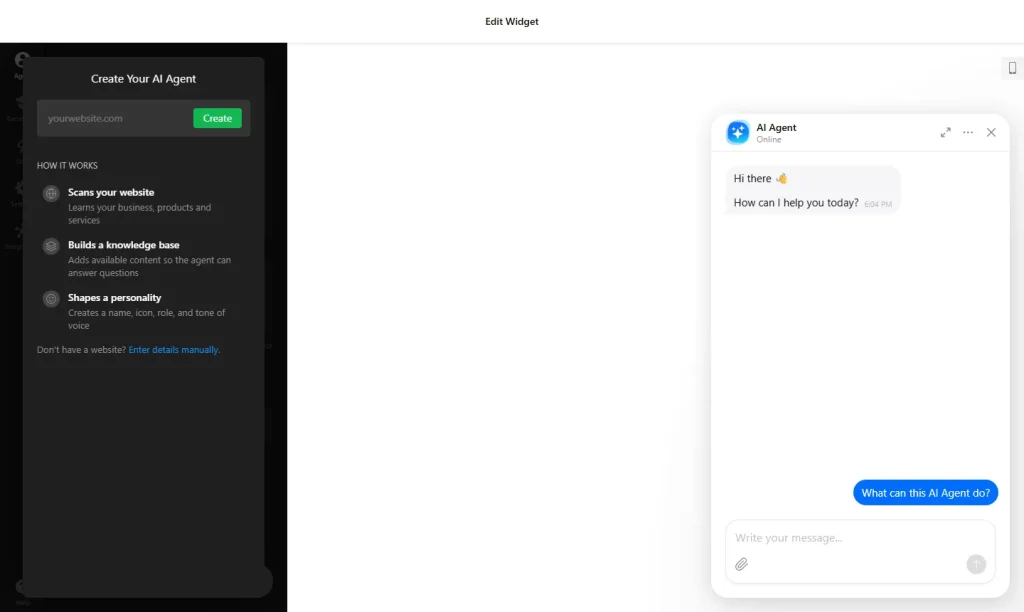
- Create your agent: Enter your website URL and click “Create”. The builder scans your site to learn about your business, products and services, adds that content to a knowledge base, and gives the agent a name, icon, role and tone of voice. No website? Click “Enter details manually” and describe your business in a couple of lines.
- Shape your agent (Agent tab): Set its role, tone of voice and answer length. Write the greeting and the suggested questions visitors see first, and add conversation rules for what it can or can’t say, what to promote or avoid, and how to handle specific topics. Order matters, so put the most important rules at the top.
- Add knowledge (Knowledge tab): Upload files (PDF, TXT, JSON, DOCX, PPTX, HTML or MD), add text blocks and questions and answers, and add links to your web pages. The free plan stores up to 10 million characters of content.
- Add skills (Skills tab): Collect leads with a form for names, emails, phone numbers and consent; show action buttons that open pages or start a call, email or chat; send a follow-up message when a visitor stops replying; hand the chat to a person by email, call or WhatsApp; and take bookings through Calendly or Cal.com.
- Settings: Choose how the chat appears (floating bubble, floating input or an embedded chat window), set its position, theme and colors, pick the pages and devices it shows on, and add footer text or a disclaimer. Turn on email notifications to receive new leads and chat transcripts.
- Integrations: Send leads and chat data to your CRM or other tools with webhooks and integrations. You can also track chatbot interactions as Google Analytics events.
- Test it: Ask your agent a few real customer questions in the preview before you save, and add knowledge or rules where its answers fall short.
- Once you have finished creating your AI Chatbot widget, adding it to your website is a breeze. Just click the “Add to website for free” button and sign up on the following page to save your widget.
- Copy the embed code for the AI Chatbot widget and paste it into your website’s HTML editor where you want to showcase it.
Good to know before you start
- Free plan limits: The free plan includes all core AI chatbot features, 10 million characters of knowledge storage and 50 messages a month. When the monthly message limit is reached, the chatbot pauses. Paid plans include more messages (300 a month on Basic) and more storage.
- How characters are counted: Every symbol counts, including letters, spaces, punctuation and numbers. For uploaded files, one byte counts as one character.
- Questions your content doesn’t cover: The chatbot answers from general AI knowledge or says it doesn’t have the information. Add the missing details to its knowledge, or use conversation rules and human handoff for topics your team should handle.
- Languages: It continues the conversation in the visitor’s language and remembers earlier messages in the same chat.
The AI Chatbot widget’s HTML embed code
Paste the embed code on your website’s template, theme, or HTML source code editor in places where you want to embed the AI Chatbot widget.
AI chatbot, WhatsApp or live chat? Compare the options in WhatsApp vs Messenger vs live chat: which chat widget fits your website?
More chat and contact widgets
- WhatsApp Chat widget
A WhatsApp chat button or bubble - Messenger Chat widget
Chat through Facebook Messenger - Instagram Chat widget
Send visitors to your Instagram DMs - Telegram Chat widget
A Telegram chat button - All-in-One Chat widget
Every chat app behind one button - Click to Call widget
One-tap calling on phones