
People land on a nonprofit website with a few quick questions: What do you do? Does my money make a difference? How do I give, or help in another way? If the homepage answers those in seconds, they donate, sign up, or come to your next event. If they have to dig for a donate link or guess what a gift achieves, most of them leave and don’t come back.
Your website matters more than it might seem. Americans gave an estimated $617.20 billion to charity in 2025, and $394.2 billion of it, nearly two-thirds, came from individuals, according to Giving USA 2026. Many of those individuals check your website before they give. Yet in M+R’s annual study of US nonprofits, only a small share of website visitors made a gift:
Nonprofit websites in numbers (US, 2025)
Source: M+R Benchmarks 2026, Website Performance (data for 2025)
You don’t need a new website or a developer to improve those numbers. Nine small widgets, each pasted in as a few lines of code, cover what donors, volunteers and supporters look for. They work on Wix, Squarespace, WordPress, Google Sites, Shopify, and Webflow, and you can build all of them for free.
In this guide
- The 9 widgets at a glance
- 1. A donate button that works on every page
- 2. Impact numbers
- 3. A countdown for campaigns and deadlines
- 4. Stories, testimonials and video
- 5. An event calendar
- 6. A newsletter sign-up
- 7. A volunteer sign-up form
- 8. A social feed
- 9. Accessibility and translation
- Bonus: 6 more widgets worth adding
- Where to put each widget
- How to add these widgets to your website
- Frequently asked questions
- Start with your donate button
The 9 widgets at a glance
| # | Widget | What it does for you | Where it goes |
|---|---|---|---|
| 1 | Donate button | Takes one-time and monthly gifts through PayPal | Hero, and after your stories |
| 2 | Impact numbers | Shows what gifts have achieved | Right under the hero |
| 3 | Campaign countdown | Adds a real deadline to an appeal | Bar at the top while a campaign runs |
| 4 | Stories and video | Lets the people you help speak for you | Middle of the homepage |
| 5 | Event calendar | Lists fundraisers, open days and shifts | Homepage and an Events page |
| 6 | Newsletter sign-up | Keeps in touch with people not ready to give | Lower homepage and footer |
| 7 | Volunteer form | Collects volunteer applications | Get Involved page |
| 8 | Social feed | Shows your work is happening right now | Lower homepage |
| 9 | Accessibility and translation | Helps more people read your site | Floating button, every page |
1. A donate button that works on every page
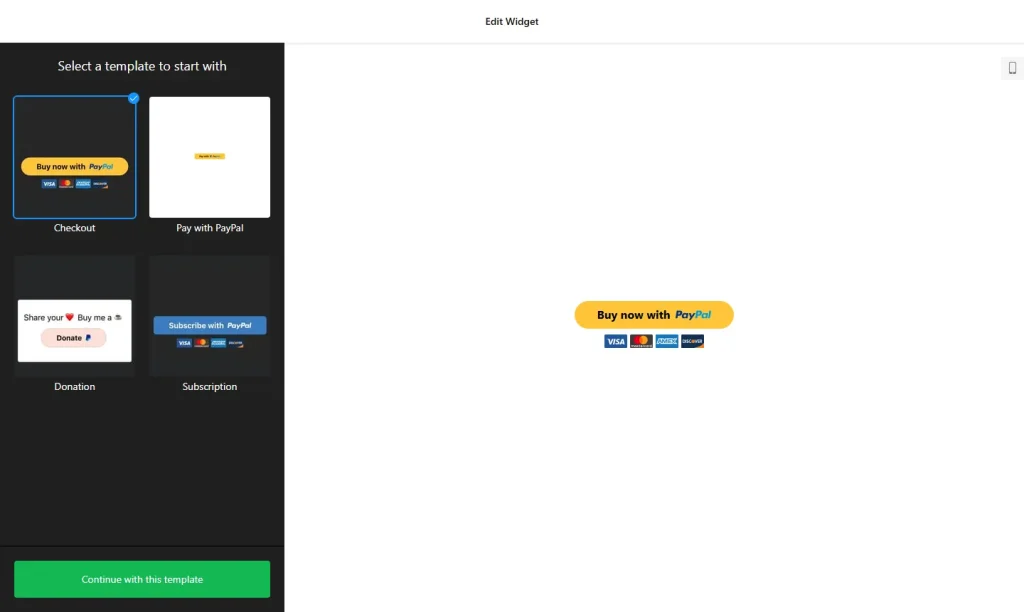
A donate link hidden in the footer, or a “Contact us to give” note, loses gifts. Supporters should be able to give from the page they’re reading, in a couple of taps. A PayPal button widget does that without a full payment system: choose the donation button type, set a fixed amount or use the Optional donation type so donors enter their own amount, and pick your currency and language. The money goes to your PayPal account, and you can send donors to your own thank-you page after they pay.
Most visitors arrive on a phone, but phone visitors give less often, which makes a fast, simple button even more important:
Mobile brings the visits, desktop brings the money
Share of nonprofit website activity that came from mobile devices (phones and tablets), 2025
Desktop made up the rest: 48% of visits, 57% of gifts and 72% of revenue.
Source: M+R Benchmarks 2026, Website Performance (data for 2025)
Show data table
| Item | Value |
|---|---|
| Website visits | 52% |
| Donations (number of gifts) | 43% |
| Donation revenue | 28% |
- Offer monthly giving too. The same widget supports subscriptions, so you can add a “Give monthly” button next to the one-time gift.
- Good to know: PayPal processes every gift, so PayPal’s own terms and any transaction fees apply. Already use a donation platform? Paste its own button or form the same way.
2. Impact numbers
“Your gift makes a difference” is easy to say and easy to ignore. “12,480 meals served this year” is not. Concrete numbers answer the question every donor has, which is whether the money is used well, and they’re quick to read on a phone.
A number counter widget shows your key figures as animated counters with an icon and caption, such as families housed, trees planted, or volunteer hours. You can add a prefix or suffix ($, %, +), link each counter to a story page, and even pull live values from a JSON link, so a running total updates itself.

Tip: pick three or four numbers at most, and tie one of them to a gift amount (“$50 covers a week of meals for a family”). Only use figures you can back up.
3. A countdown for campaigns and deadlines
Giving Tuesday, year-end appeals, matching-gift days and grant challenges all have one thing in common: a deadline. Showing that deadline gives people a reason to give today instead of “later”.
A countdown timer widget can sit inside a page or as a static or floating banner at the top or bottom of every page, with a button that links to your donation page. When time runs out, it can hide itself, show a thank-you message, or redirect to a results page. Use a real end date only, and remove the timer when the campaign is over.
4. Stories, testimonials and video
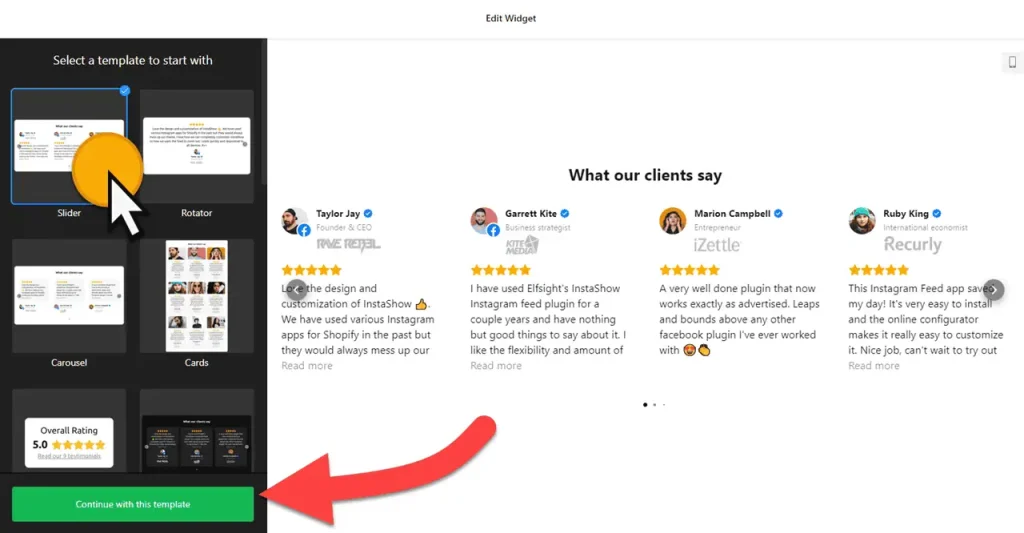
Numbers prove scale; stories create the urge to help. A short quote from a parent, a volunteer, or a partner school does more than a paragraph about your mission. A testimonials slider shows quotes with a name, photo and caption as a carousel, grid or list. Its Customer Story template suits longer stories, and there’s a version without star ratings, which fits a charity better than five stars.
If you have video, use it. A video gallery widget puts your YouTube, TikTok, Instagram Reels and Vimeo videos in one gallery, so a 60-second field update sits right next to the donate button. Always ask permission before you publish someone’s story or photo. For more ideas, see 9 ways to show testimonials on your website.
5. An event calendar
Galas, charity runs, open days, community meals and volunteer shifts are how many supporters first get involved. A list of dates buried in a news post is easy to miss and quickly goes out of date.
An event calendar widget shows events as a list, grid, month, week or day view. You can add events by hand or sync them from Google Calendar, and give each one an image, description, venue and a button such as “Register” or “Buy tickets”. Event types, hosts and venues help visitors find what they’re looking for, for example fundraisers versus volunteer days.
6. A newsletter sign-up
Most first-time visitors won’t give on their first visit. If they leave without a way to hear from you again, they’re gone. An email list is the one audience you own, and it’s where many future gifts start.
A subscription form widget can sit inline in your page or float as a small panel. It sends you an email for each sign-up, can send subscribers an automatic welcome reply, and connects to Mailchimp, Google Sheets, or other tools through Zapier. Keep it to one or two fields: email, and maybe first name.
7. A volunteer sign-up form
Some supporters can give time more easily than money. A clear “Volunteer with us” form turns that interest into a list you can actually schedule, instead of scattered emails.
A form builder widget has ready-made application and event registration templates, more than 20 field types (including date pickers and file uploads, for example for a reference letter), conditional fields, and spam protection. You can also describe the form you need and let its AI tool build a first draft. Ask only for what you need to place someone: name, contact details, availability, and the roles they’re interested in.
8. A social feed
A website that was last updated months ago makes people wonder whether you’re still active. Your social media is usually where the day-to-day work shows up. A social feed widget pulls posts from Instagram, Facebook, LinkedIn, TikTok, YouTube and more into one stream on your site, so it stays fresh without extra work. Filters by keyword, hashtag or date let you show only campaign posts on a campaign page.
9. Accessibility and translation
Many nonprofits serve people with low vision, dyslexia, or limited English. An accessibility widget adds a floating button that lets visitors adjust text size, spacing, fonts and colors, with preset modes such as Low Vision, Dyslexia-Friendly and Seizure Safe. A website translator widget adds a language switcher for more than 100 languages.
Important: an accessibility widget helps visitors, but it doesn’t make a site compliant with accessibility laws on its own. Alt text on images, clear headings, enough color contrast and labeled form fields still matter. Machine translation is also no substitute for professionally translated pages on key topics such as eligibility or services.
Bonus: 6 more widgets worth adding
- Timeline: your history and milestones on an About page, from founding to today.
- Team showcase: staff and board members with photos and roles. Donors like to see who runs the organization.
- Logo showcase: thank sponsors, funders and partners in a logo carousel.
- Job board: open staff roles and volunteer positions in one list.
- Announcement bar: one line at the top of every page for an emergency appeal or a schedule change.
- Poll: ask supporters which project or event they want next, and show the results.
Where to put each widget
Lay out your homepage in the order a new visitor thinks: what do you do, does it work, how can I help, and what’s coming up. Put the donate button where the decision happens, not only in the menu. A simple layout looks like this:
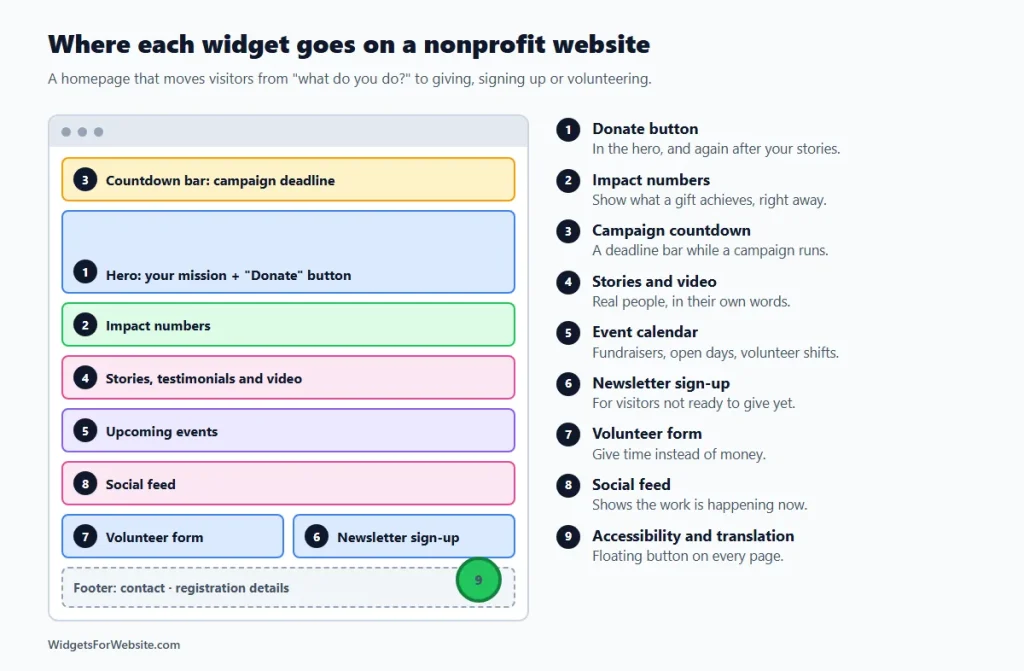
- Hero: one strong photo, a one-line mission, and the donate button.
- Impact numbers right under the hero.
- Countdown bar at the top of every page, only while a campaign runs.
- Stories and video in the middle of the page, followed by a second donate button.
- Upcoming events after the stories.
- Newsletter sign-up near the bottom, for visitors not ready to give.
- Volunteer form next to the newsletter, or on a Get Involved page.
- Social feed lower on the page, to show the work is ongoing.
- Accessibility button floating in a corner on every page, with the language switcher in the header.
How to add these widgets to your website
Every widget above works the same way: open the builder, pick a template, customize it, and copy the embed code. Then paste the code into your website builder’s HTML or embed element. Our guide on how to add embed code to any website builder shows exactly where that element is on each platform. Platform roundups: best Wix widgets, best Squarespace widgets and essential Google Sites widgets.
What it costs: each widget has a free plan with one widget and up to 200 views a month, plus a small Elfsight branding link. That’s enough to test a widget or run it on a quieter page. A busy homepage will need a paid plan, which starts at $5 a month billed yearly.
On Google Sites, each embed runs inside its own box, so floating widgets such as the accessibility button, a countdown banner, or a floating sign-up panel only work inside that box. Use their inline versions there. And keep pages fast: add the essentials first, check your homepage on a phone, then add extras. Our guide do website widgets slow down your site? explains how. For a worked example from another industry, see 8 website widgets every restaurant needs.
Frequently asked questions
Do I need all 9 widgets on my nonprofit website?
No. If you only add three, make them a donate button, your impact numbers, and a newsletter sign-up. Add stories and an event calendar next. The rest are worth adding once the basics are in place.
Can I accept donations with a PayPal button widget?
Yes. Choose the donation button type, then set a fixed amount or let donors enter their own. Gifts go to your PayPal account, and PayPal’s own terms and any transaction fees apply. If you already use a donation platform, you can paste its button or form instead.
Will donors get a receipt for tax purposes?
The widget itself doesn’t issue receipts; payments and payment confirmations are handled by PayPal. Whether a gift is tax-deductible, and what kind of receipt you have to send, depends on your registration and local rules, so check them and send your own thank-you and receipt where required.
Can I add these widgets to Wix, Squarespace, WordPress, or Google Sites?
Yes. Each widget gives you an embed code that works on Wix, Squarespace, WordPress, Google Sites, Shopify, and Webflow. On Google Sites, floating widgets such as the accessibility button or a countdown banner only work inside their embed box, so use inline versions there.
Does an accessibility widget make my nonprofit website ADA compliant?
No. It gives visitors tools to adjust text, spacing and colors, which helps many people, but compliance also depends on your site’s own code and content, such as alt text, headings, color contrast and labeled forms. Treat the widget as an extra layer of help, not a fix.
Start with your donate button
If you do one thing today, add a free PayPal donate button to your homepage and to the end of every story you publish. It takes a few minutes and puts the most important action one tap away. Then add your impact numbers, or browse the full library of free HTML widgets.
Build your first widget for free
Pick a template, customize it in your browser and paste the code into your website. The free plan covers one widget with up to 200 views a month.
Browse all 85 widgets