
People looking for a new salon or spa want to know four things before they book: What do you offer and what does it cost? Are you any good? Can I book a time that suits me? Where are you, and when are you open? If your website answers those in a few taps, they book. If they have to call during work hours or scroll through Instagram to guess your prices, many of them move on to the next salon in the search results.
Your website matters more than it might seem. In BrightLocal’s 2026 survey of US consumers, 54% said they visit a business’s website after reading positive reviews, more than any other next step. The good news: you don’t need a custom-built site to turn those visits into appointments. The nine widgets below each paste in as a few lines of code, work on Wix, Squarespace, WordPress, Google Sites, Shopify and Webflow, and can be built for free.
In this guide
- The 9 widgets at a glance
- 1. Online booking that works around the clock
- 2. A clear service menu with prices
- 3. Before and after photos
- 4. Reviews from Google, Yelp and Facebook
- 5. Meet the team
- 6. An Instagram feed
- 7. A map and opening hours
- 8. Call and WhatsApp buttons
- 9. A first-visit offer
- Bonus: 5 more widgets worth adding
- Where to put each widget
- How to add these widgets to your website
- Frequently asked questions
- Start with online booking
The 9 widgets at a glance
| # | Widget | The question it answers | Free builder |
|---|---|---|---|
| 1 | Online booking | “Can I book at 10 pm for Saturday?” | Appointment booking |
| 2 | Services and prices | “What do you offer, and how much is it?” | Pricing table |
| 3 | Before and after photos | “Are you any good at this?” | Before and after slider |
| 4 | Reviews | “What do other clients say?” | Google reviews |
| 5 | Meet the team | “Who will do my hair or treatment?” | Team showcase |
| 6 | Instagram feed | “What does your recent work look like?” | Instagram feed |
| 7 | Map and opening hours | “Where are you, and are you open?” | Google Maps, Business hours |
| 8 | Call and WhatsApp buttons | “Can I just ask someone?” | Click-to-call, WhatsApp |
| 9 | First-visit offer | “Is there a reason to try you now?” | Announcement bar, Spin the wheel |
1. Online booking that works around the clock
Your clients think about their next appointment when they have a moment: late in the evening, on a lunch break, on the bus. If the only way to book is a phone call during opening hours, a lot of those moments end without a booking. A September 2025 survey by salon software company Zenoti shows how often that happens:
Hard-to-book salons lose clients
Source: Zenoti salon and spa consumer survey, September 2025 (1,011 US adults)
An appointment booking widget lets people pick a service and a free time slot on your website, at any hour. For each service you add a name, a short description, a photo, the duration and the price. You can show a fixed price, set a minimum (“from”) price, or hide the price. Then you choose the hours you take bookings and how far ahead people can book. New bookings can go straight to your Google Calendar or Google Sheets, and you can turn on email notifications for yourself and the client.
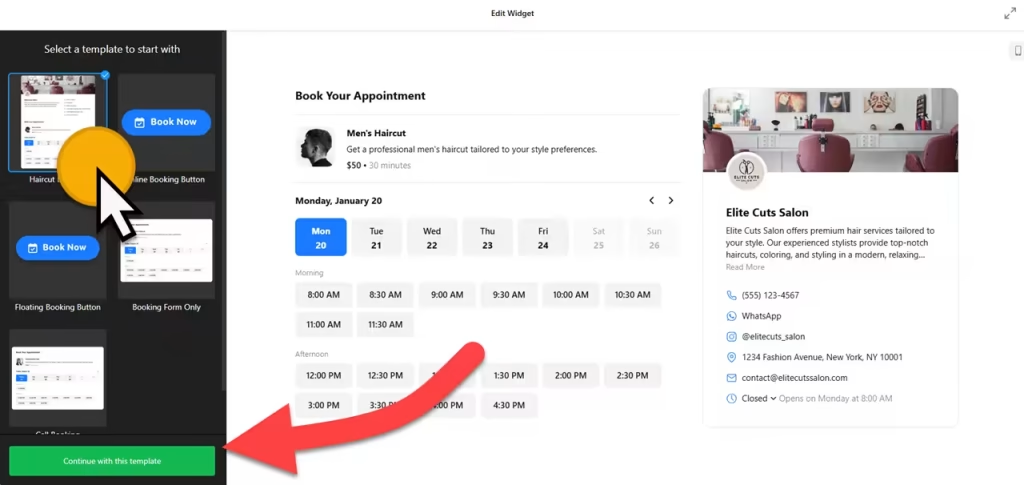
- Tip: use the floating booking button template so “Book now” follows visitors down every page, and add a second inline booking form right after your price list.
- Already use salon software? Most booking systems give you their own booking button or embed code. Paste it in the same way. What matters is that people can book without leaving your website.
2. A clear service menu with prices
“How much is a balayage?” is probably the message you get most. Prices on your website answer it before anyone has to ask, and they help people choose the right service before they book. Even when the final price depends on hair length or a consultation, a “from” price sets expectations and saves awkward surprises at the till.
A pricing table widget is ideal for packages and memberships, such as a bridal package, a monthly blow-dry plan or a course of facials. Its templates include pricing grids, comparison tables and service plans, and each package can have a list of what’s included, a discount and its own button. For a long list of individual services, the menu widget works well as a service menu too: group treatments into sections (cuts, color, nails, massage), and give each one a short description, a price and a photo.
3. Before and after photos
Nothing shows your skill like a transformation: a color correction, a fresh cut, a set of brows or the result of a skin treatment. Two photos side by side work, but an interactive slider is better. Visitors drag a handle across the image to reveal the result, which makes the change obvious.
A before and after slider widget has templates such as Retouch Slider and List of Works. You can add several image sets with labels and captions, show them as a list or a carousel, and let visitors open the images full screen.
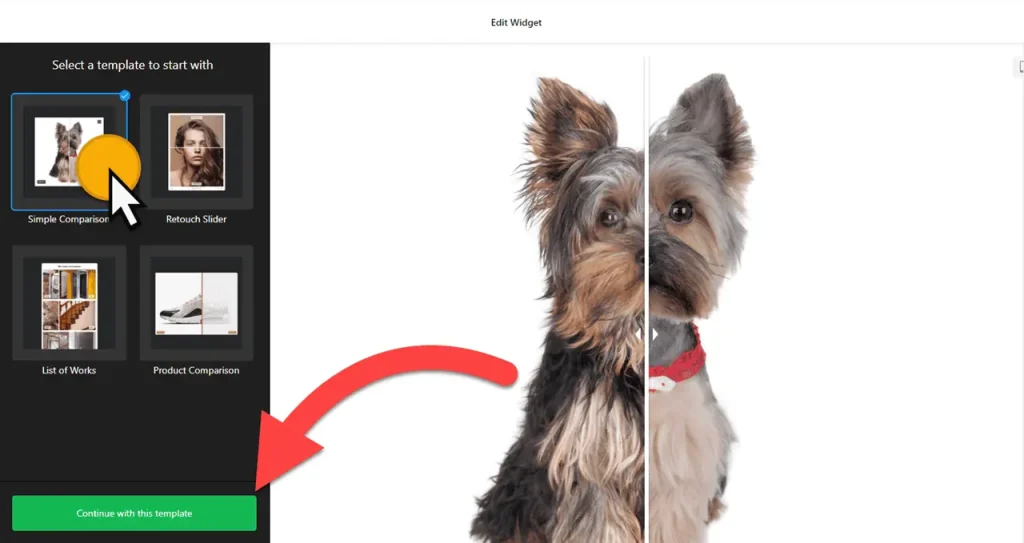
Keep it honest: ask clients for written permission before you use their photos, shoot both images in the same light and from the same angle, and don’t retouch the “after”.
4. Reviews from Google, Yelp and Facebook
Choosing a new hairdresser or therapist is personal, so people lean heavily on what other clients say. In BrightLocal’s 2026 survey, 97% of consumers said they read reviews for local businesses, and 68% will only use a business with four stars or more. The same survey shows where people go next:
After reading positive reviews, most people go to the business's website
What US consumers do after reading positive reviews of a local business
Respondents could choose several actions. Selected answers shown.
Source: BrightLocal Local Consumer Review Survey 2026 (1,002 US adults)
Show data table
| Item | Value |
|---|---|
| Visit the business's website | 54% |
| Read more reviews | 37% |
| Visit the business in person | 31% |
| Check its social media | 24% |
| Contact the business | 20% |
| Make an appointment | 20% |
So the reviews and your website work together: show your best reviews right where people decide. A Google reviews widget pulls reviews from your Google Business Profile and shows them as a carousel, grid or list, and new reviews appear on their own. Recent reviews matter too: 74% of consumers in the same survey only care about reviews from the last three months, so a widget that updates itself beats a few quotes copied into your site years ago.
Collecting reviews somewhere else? There are dedicated widgets for Yelp reviews and Facebook reviews, and an all-in-one reviews widget that combines several platforms in one feed. One caution: Yelp asks businesses not to request reviews, so on Yelp, just show the reviews you already have. For more ideas, see 9 ways to show reviews and testimonials on your website.
5. Meet the team
Clients don’t just book a salon; they book a person. A new client wants to know who specializes in curly hair, who does bridal makeup, or which therapist is trained in a particular massage. A “Meet the team” section answers that and makes the first visit feel less like a gamble.
A team showcase widget gives each person a photo, name, role, short bio and social links, and visitors can click a profile to see the full details. You can group people (stylists, colorists, therapists) and let visitors filter between groups, and choose a grid, list, gallery or card layout. There’s even a button for job seekers, handy when you’re hiring.
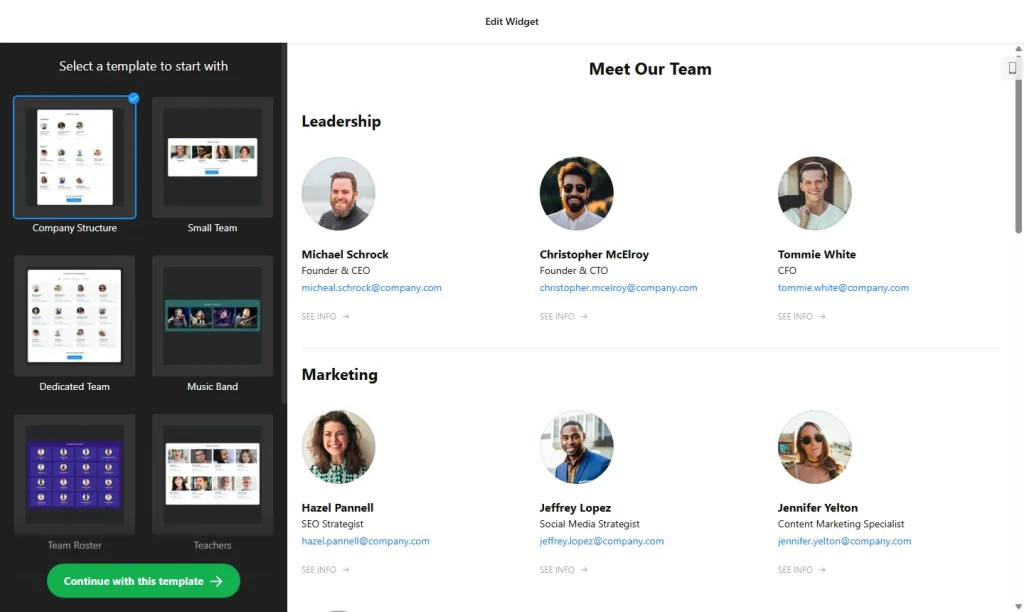
Tip: mention each person’s specialties and link their Instagram. Clients who love someone’s work will book that person by name.
6. An Instagram feed
You probably already post your best work on Instagram. An Instagram feed widget shows your latest posts on your website automatically, so the site always looks current without you updating it: this week’s color work, a new nail design, the treatment room after a refresh. It also turns website visitors into followers you can reach again.
Posting more video on TikTok? A TikTok feed or a social feed widget that combines several platforms does the same job. For polished photos of the space, use a photo gallery.
7. A map and opening hours
Once someone has decided to book, the next questions are practical: where exactly are you, is there parking, and are you open late on Thursdays? A Google Maps widget shows an interactive map that opens in the visitor’s maps app on a phone. Add one line next to it about parking or which door to use.
Put a business hours widget beside the map. One of its templates shows whether you’re open right now, the Special days setting handles holidays and one-off closures, and you can add buttons such as Call or Directions under your hours. Running several locations? A store locator lists every branch on one searchable map. Keep your Google Business Profile hours the same as the ones on your site.
8. Call and WhatsApp buttons
Online booking doesn’t replace the phone. In the same Zenoti survey, 77% said calling is always or mostly the easiest way to change an appointment. People also have questions a booking form can’t answer: “Can I bring my child?”, “Do you do patch tests?”, “Can you fit me in today?”
A floating click-to-call button stays in the corner of the screen on phones and dials your number in one tap. If you’d rather answer between clients, a WhatsApp chat button opens a chat with your business number. Clients who prefer other apps can reach you through an all-in-one chat widget that combines WhatsApp, Messenger, Instagram and more in one button. Not sure which to pick? Our comparison of WhatsApp vs Messenger vs live chat helps.
9. A first-visit offer
A small welcome offer gives someone who is comparing two salons a reason to try yours now. The simplest way to show it is an announcement bar, a thin strip at the top of every page with one short message and a link, such as “New clients: 15% off your first color, book online”. Use the same bar for holiday hours or a new therapist joining.
Want something more playful? A spin the wheel widget lets visitors spin for a prize, such as a discount, a free add-on or a product sample, in exchange for their email. You set up to 10 prizes with their own promo codes, decide how often each one comes up, and choose when the wheel appears. Keep it fair: show the prize terms clearly (expiry date, minimum spend, new clients only) and make sure every prize on the wheel can actually be won.
Bonus: 5 more widgets worth adding
- FAQ: answer the questions you get every day, such as cancellation and deposit policy, patch tests, how to prepare for a treatment, and parking.
- Portfolio: a gallery of bridal, editorial or competition work, sorted by category.
- Testimonials slider: longer quotes from brides, regulars and spa-day guests, with their permission.
- Newsletter sign-up: collect emails for seasonal offers, new treatments and last-minute openings. A list you own is worth more than followers.
- Accessibility toolbar: lets visitors enlarge text, raise contrast or switch to a dyslexia-friendly font. It helps, but it doesn’t make a site compliant on its own.
Where to put each widget
Order matters as much as the widgets themselves. Lay out your homepage in the order a new client asks their questions: is there an offer, can I book, what do you do and for how much, are you good, who are you, and where are you. A simple one-page layout looks like this:
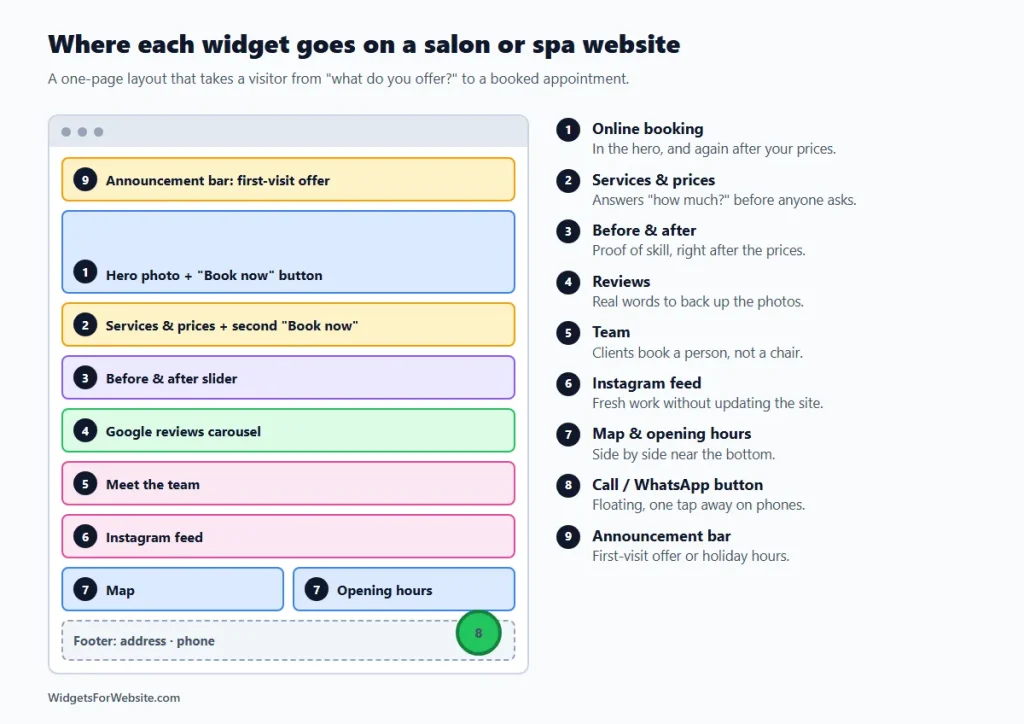
- Top of every page: announcement bar with your first-visit offer.
- Hero: one strong photo of your work and a “Book now” button.
- Services and prices, followed by a second booking button.
- Before and after slider right after the prices, as proof.
- Reviews to back up the photos with real words.
- Meet the team, then your Instagram feed.
- Map and opening hours side by side near the bottom.
- Call or WhatsApp button floating in the corner on every page.
How to add these widgets to your website
Every widget above works the same way: open the builder, pick a template, customize it, and copy the embed code. Then paste the code into your website builder’s HTML or embed element. Our guide on how to add embed code to any website builder shows exactly where that element is on each platform. Platform roundups: best Wix widgets, best Squarespace widgets and essential Google Sites widgets.
You can start on the free plan, which includes one widget with up to 200 views per month and a small Elfsight branding link. Paid plans start at $5 per month (billed yearly) for more views and no branding. On Google Sites, each embed sits in its own box, so floating elements like the WhatsApp button, the spin-the-wheel popup and the announcement bar stay inside that box instead of covering the whole page.
Keep it fast. Most clients will see your site on a phone. Start with booking, prices, before-and-after photos and reviews, check how the page loads on your own phone, and only then add extras. Our guide do website widgets slow down your site? shows how to keep pages quick.
Frequently asked questions
Do I still need a phone number if I offer online booking?
Yes. Online booking catches people who decide outside your opening hours, but many clients still prefer to call: in a 2025 Zenoti survey, 77% said calling is always or mostly the easiest way to change an appointment. Offer both: a booking widget for new appointments and a click-to-call or WhatsApp button for questions and changes.
Should I show prices on my salon website?
Yes, at least “from” prices. Prices answer the most common question before anyone has to ask, and they help clients pick the right service. If the final price depends on hair length or a consultation, say so next to the price.
Can I use before-and-after photos of my clients?
Only with the client’s permission, ideally in writing. Take both photos in the same light and from the same angle, don’t retouch the result, and check any advertising rules that apply to your treatments.
Can I add these widgets to Wix, Squarespace, or Google Sites?
Yes. Each widget gives you an embed code that works in Wix, Squarespace, WordPress, Google Sites, Shopify, and Webflow. On Google Sites, floating elements such as chat buttons and popups stay inside their embed box. Our embed code guide shows where to paste the code on each platform.
How much do these widgets cost?
You can build every widget for free. The free plan includes one widget with up to 200 views per month and a small Elfsight branding link. Paid plans start at $5 per month, billed yearly, and add more views and widgets and remove the branding.
Start with online booking
If you do one thing today, add a free appointment booking widget with a “Book now” button at the top of your homepage. It catches the clients who decide at 10 pm, and it takes the pressure off your phone. Then work down the list, see how we set up a restaurant website with the same approach, or browse the full library of free HTML widgets.
Build your first widget for free
Pick a template, customize it in your browser and paste the code into your website. The free plan covers one widget with up to 200 views a month.
Browse all 85 widgets