
Most home buyers and sellers meet you online before they meet you in person. They find a listing, look you up, read what past clients say, and decide whether to get in touch. Your website has one job in that moment: make you look like the obvious agent to work with, and make contacting you take one tap.
The numbers back this up. In the National Association of REALTORS® survey of recent home buyers, 43% said their first step was looking online for properties, and 51% found the home they bought on the internet. Yet agents are still at the center of the deal: in NAR’s 2025 Profile of Home Buyers and Sellers, 88% of buyers purchased through an agent or broker, and 91% of sellers sold with one.
How recent US home buyers searched
Source: NAR, 2025 Home Buyers and Sellers Generational Trends (buyers who purchased July 2023 to June 2024)
Listing portals already show the homes. Your own website is where you win the client. The nine widgets below cover what buyers and sellers look for on an agent’s site. Each one is a few lines of embed code that works on Wix, Squarespace, WordPress, Google Sites, Shopify and Webflow, and you can build all of them for free.
In this guide
- The 9 widgets at a glance
- 1. A mortgage calculator
- 2. Reviews and testimonials
- 3. Video tours of your listings
- 4. Online booking for viewings and consultations
- 5. A “What’s my home worth?” form
- 6. WhatsApp and click-to-call buttons
- 7. An open house calendar
- 8. A team showcase
- 9. An Instagram feed
- Bonus: 6 more widgets worth adding
- Where to put each widget
- How to add these widgets to your website
- Frequently asked questions
- Start with your reviews
The 9 widgets at a glance
| # | Widget | The question it answers | Free builder |
|---|---|---|---|
| 1 | Mortgage calculator | “What can I afford?” | Calculator |
| 2 | Reviews and testimonials | “Is this agent any good?” | Google reviews, Testimonials slider |
| 3 | Video tours | “What does it look like inside?” | Video gallery |
| 4 | Viewing booking | “When can I see it?” | Booking widget |
| 5 | Home valuation form | “What’s my home worth?” | Form builder |
| 6 | WhatsApp and call buttons | “Can I just ask a quick question?” | WhatsApp, Click-to-call |
| 7 | Open house calendar | “When is the next open house?” | Event calendar |
| 8 | Team showcase | “Who will I actually work with?” | Team showcase |
| 9 | Instagram feed | “What have you sold lately?” | Instagram feed |
1. A mortgage calculator
Price is the first filter for every buyer. Before they book a viewing, they want to know whether a home fits their budget. A calculator on your site answers that on the spot, instead of sending them off to another website to do the math.
The calculator widget has more than 100 templates, including a ready-made Mortgage Calculator. You can change the fields (sliders, number inputs, dropdowns and choices), edit the formula yourself or let the built-in AI build it, and finish the result section with a call-to-action button such as “Book a consultation”.

- Add a short disclaimer under the calculator: the results are estimates for planning only, not a loan offer, and the real rate and payment depend on the lender.
- Put it where the price is: on listing pages and your buyer’s guide, not only on a separate “tools” page nobody visits.
2. Reviews and testimonials
Choosing an agent is a big decision, and most people start with one question: did this person get a good result for someone like me? Real words from past clients answer that better than any bio you could write.
If clients review you on Google, a Google reviews widget pulls those reviews from your Business Profile and keeps them up to date on its own. For quotes you collect yourself, from closing emails or thank-you notes, use a testimonials slider: each testimonial can show a star rating, the client’s name, photo and date. If your reviews are spread across several sites, an all-in-one reviews widget combines them in one feed.
Tip: only show real reviews, and ask before using a client’s full name or photo. A testimonial that says what you helped with (“first home, closed in five weeks”) is far more convincing than “Great agent!” For more ideas, see 9 ways to show reviews and testimonials on your website.
3. Video tours of your listings
Photos get buyers interested. Video tells them whether the layout works before they give up a Saturday for a viewing. When NAR asked buyers who searched online which website features they found very useful, photos, detailed property information and floor plans topped the list, and 41% said the same about virtual tours.
Website features home buyers rate "very useful"
Share of recent US home buyers who used the internet in their search
Buyers who purchased a primary residence between July 2023 and June 2024. Buyers rated each feature separately.
Source: NAR, 2025 Home Buyers and Sellers Generational Trends, Exhibit 3-6
Show data table
| Item | Value |
|---|---|
| Photos | 83% |
| Detailed information about properties for sale | 79% |
| Floor plans | 57% |
| Real estate agent contact information | 47% |
| Virtual tours | 41% |
| Interactive maps | 30% |
| Videos | 29% |
| Information about upcoming open houses | 24% |
You’re probably already filming walk-throughs for YouTube, Instagram Reels or TikTok. A video gallery widget puts them on your site in one place. It can combine YouTube, TikTok, Instagram Reels, Vimeo and your own MP4 files, plays videos in a popup without leaving your page, and can show a call-to-action card when a video ends, which is the perfect spot for “Book a viewing”. New uploads appear on their own. If everything lives on one YouTube channel, a YouTube gallery widget does the job with less setup.
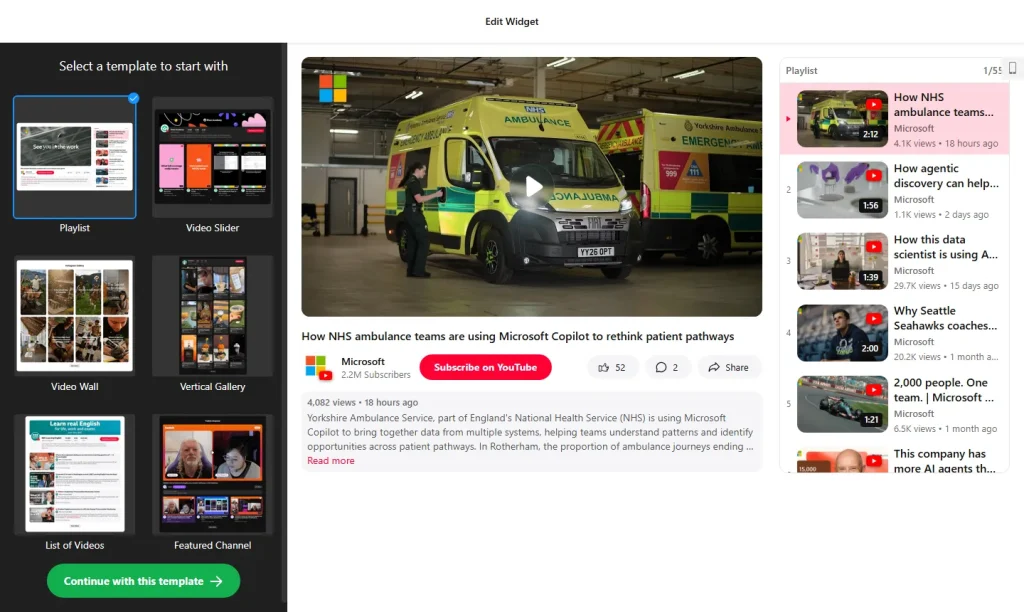
Tip: add each listing or neighborhood as its own source, and visitors can switch between them with tabs instead of scrolling through every video you’ve ever posted.
4. Online booking for viewings and consultations
Every “Can I see it on Thursday?” email turns into a few rounds of back-and-forth. Let people pick a time themselves, including late at night when they’re browsing listings on the sofa.
An appointment booking widget shows your open time slots and lets visitors book one. You set your working hours and how far in advance people can book, both you and the client get email notifications, and bookings can be sent to Google Calendar, Google Sheets or Zapier. Templates include a call booking form and a floating “Book now” button that stays on screen.
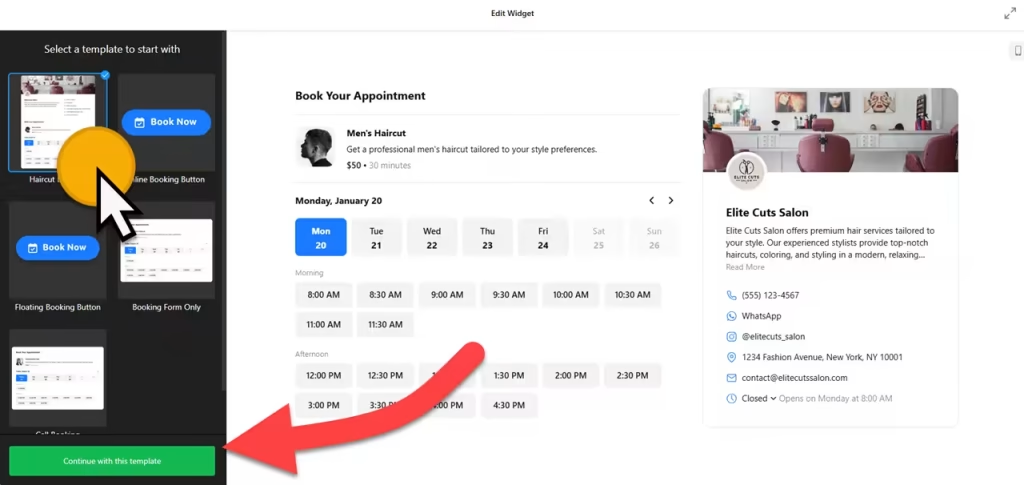
Tip: set up separate services for a buyer consultation, a listing appointment and a property viewing, each with its own length. Put the booking button in your homepage hero and on every listing page.
5. A “What’s my home worth?” form
Sellers are the clients most agents want, and almost every homeowner wonders what their home would sell for. A short valuation request form turns that curiosity into a lead you can call.
The form builder has 390+ templates and more than 20 field types, including file uploads, which are handy for photos of a recent renovation. Ask only for what you need: address, property type, bedrooms, timeline and contact details. You get an email for every submission, the homeowner gets an automatic confirmation, Google reCAPTCHA keeps spam out, and leads can go straight to Google Sheets or Mailchimp, or to your CRM through Zapier. For a plain “contact me” form, the contact form widget is even quicker to set up.
Tip: promise a time frame (“I’ll send your estimate within 24 hours”) and keep it. Link your privacy policy under the form, since you’re collecting personal details.
6. WhatsApp and click-to-call buttons
Buyers have quick questions at odd hours: “Is it still available?”, “Are pets allowed?”, “Can I bring my parents to the second viewing?” Make the answer one tap away. A floating click-to-call button dials your number directly on a phone, and a WhatsApp chat button opens a chat with your business number.
You can set the days and hours the WhatsApp chat is available, and show it either as an inline button or as a bubble floating in the corner. If your clients use different apps, an all-in-one chat widget bundles WhatsApp, Messenger, Telegram, SMS and phone calls in one button. Not sure which to pick? Our comparison of WhatsApp vs Messenger vs live chat walks through the options.
7. An open house calendar
Open houses are still part of how people shop: in NAR’s Generational Trends report, 49% of buyers used open houses as an information source. An event calendar lists all your upcoming open houses in one place, so visitors don’t have to check every listing page.
The event calendar widget syncs with Google Calendar, so an open house you add to your calendar shows up on your site. It comes with 17 templates and seven layouts (list, grid, masonry, slider, month, week and day), and you can tag events by type, host and venue, which helps when several agents run open houses.
Tip: use the list layout on your homepage. It shows the next few dates at a glance, without making visitors click through a month view.
8. A team showcase
People hire a person, not a logo. They also want to know how to reach that person: 47% of buyers who searched online rated real estate agent contact information as very useful, according to NAR. A face, a name and a direct phone number do more than a generic “Contact us” link.
A team showcase widget gives each agent a photo, title, short bio and contact details, including email, phone and social profiles. You can group people by office or role, let visitors filter between groups, and open a full profile in a popup. Solo agents can use it too, for themselves and the people who support their clients, such as an assistant or transaction coordinator.
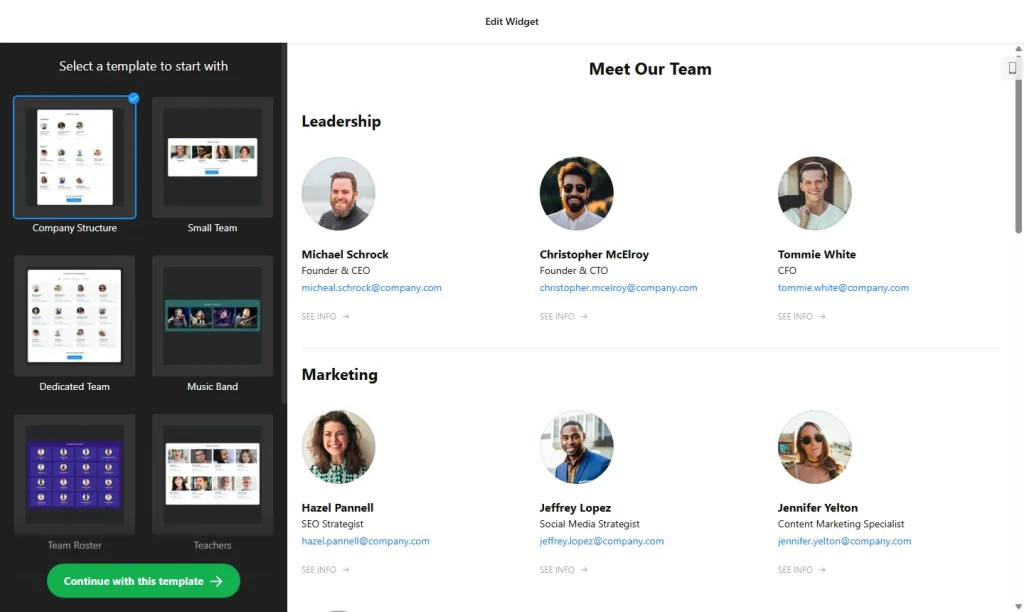
Recruiting? The widget can also show a “Join our team” button under the profiles.
9. An Instagram feed
Just listed, just sold, a new café in the neighborhood: your Instagram is already full of posts that show you’re active and local. An Instagram feed widget shows your latest posts on your website automatically, so the site never looks stale between listings.
Post on several networks? A social feed widget combines them in one stream, and a TikTok feed works well if your house tours do better there.
Bonus: 6 more widgets worth adding
- Before and after slider: show what staging, a renovation or a good clean-up did for a listing. Visitors drag a handle to compare.
- Number counter: animated figures for homes sold or years in business. Use only numbers you can back up.
- FAQ widget: answer the questions every first-time buyer asks about closing costs, timelines and what an agent actually does, in a tidy accordion.
- Newsletter sign-up: collect emails for new listings and a monthly market update. A list you own is worth more than followers on any platform.
- LinkedIn recommendations: useful if you work with relocating professionals or commercial clients who check LinkedIn first.
- Google Maps: your office location, or the neighborhoods you cover, on an interactive map.
Where to put each widget
Lay out your homepage in the order a visitor makes up their mind: can I trust this agent, do they have homes I like, can I afford them, and how do I get in touch? A simple one-page layout looks like this:
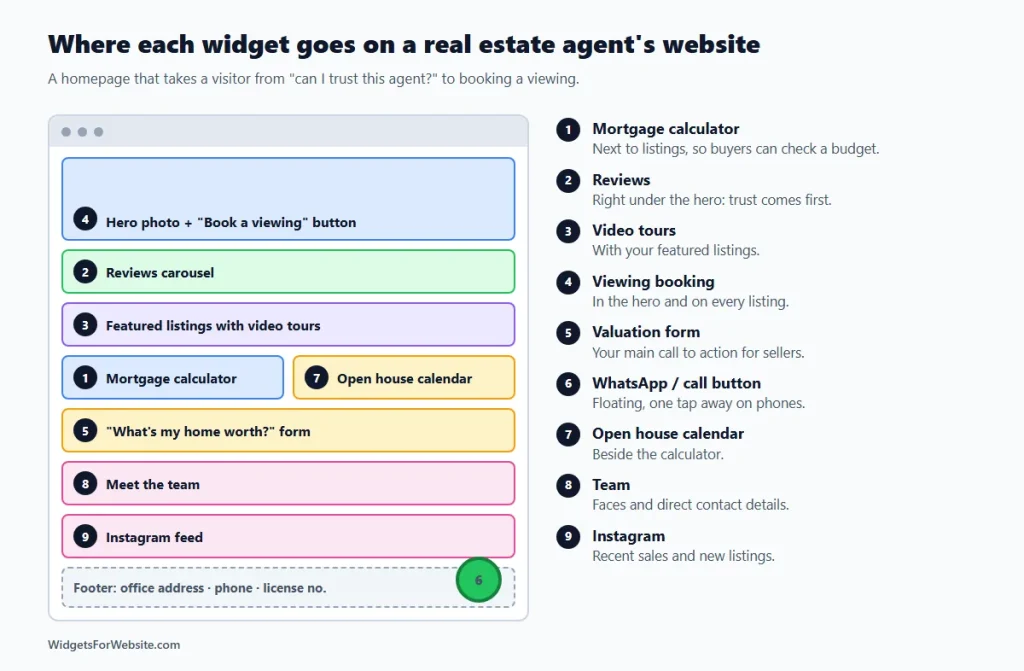
- Hero: one strong photo and a “Book a viewing” button.
- Reviews right under the hero, because trust comes first.
- Featured listings with video tours.
- Mortgage calculator and open house calendar side by side.
- “What’s my home worth?” form as the main call to action for sellers.
- Meet the team, with faces and direct contact details.
- Instagram feed near the bottom.
- WhatsApp or call button floating in the corner on every page.
How to add these widgets to your website
Every widget above works the same way: open the builder, pick a template, customize it, and copy the embed code. Then paste the code into your website builder’s HTML or embed block. Our guide on how to add embed code to any website builder shows exactly where that block is on each platform.
Platform roundups: best Wix widgets, best Squarespace widgets and essential Google Sites widgets. On Google Sites, each embed sits in its own box, so a floating chat or call bubble only shows inside that box. Use the inline button style there instead.
What it costs: you can start free. Elfsight’s free plan includes one widget per app with up to 200 views a month and a small branding link. Paid plans start at $5 per month, billed yearly, for more views and no branding.
Keep it fast. Many buyers browse on their phones. Add the widgets that answer the big questions first (reviews, booking, the calculator and the valuation form), check how the page loads on your own phone, and only then add extras. Our guide do website widgets slow down your site? shows how to keep pages quick.
Frequently asked questions
What should a real estate agent’s website include?
At minimum: your listings or a link to them, reviews from past clients, a clear way to book or call you, and something for sellers, such as a home valuation form. A mortgage calculator, video tours and an open house calendar make the site more useful for buyers.
Can these widgets show my MLS listings?
No. These widgets don’t connect to the MLS. To show live MLS listings, you need an IDX feed approved by your MLS, usually through an IDX plugin or your brokerage’s website tools. The widgets work alongside it: reviews, booking, calculators and forms around your listings.
Can I use a mortgage calculator if I’m not a lender?
Yes, as a planning tool. Label the results as estimates, add a short note that they are not a loan offer, and point buyers to a lender for real numbers.
Can I add these widgets to Wix, Squarespace, WordPress or Google Sites?
Yes. Each widget gives you an embed code that works on Wix, Squarespace, WordPress, Google Sites, Shopify and Webflow. On Google Sites, floating buttons stay inside their embed box, so use inline versions there.
Are these real estate website widgets free?
Yes, you can start free. Elfsight’s free plan includes one widget per app with up to 200 views a month and a small branding link. Paid plans start at $5 per month, billed yearly, and add more views and remove the branding.
Start with your reviews
If you do one thing this week, put your best client reviews on your homepage with a free Google reviews widget or a testimonials slider. Trust is what turns a visitor into a phone call. Then add a booking button and work down the list. For another industry example, see 8 website widgets every restaurant needs, or browse the full library of free HTML widgets.
Build your first widget for free
Pick a template, customize it in your browser and paste the code into your website. The free plan covers one widget with up to 200 views a month.
Browse all 85 widgets