
Online shoppers can’t pick up your product, ask a salesperson, or see that your shop is real. Your website has to do all of that. When something is missing, such as the total cost, a straight answer about returns, or proof that other people bought the thing and liked it, they close the tab. Across 50 studies collected by the Baymard Institute, the average cart abandonment rate is 70.22%.
Some of that is window shopping and can’t be helped. A lot of it can. When Baymard asked US shoppers why they abandoned an order during checkout, the top answers were about cost, delivery, trust and missing information:
Why US shoppers abandon an order during checkout
Share of US online shoppers who abandoned an order for each reason, not counting "just browsing"
Shoppers could give more than one reason. Top 8 of 11 reasons shown.
Source: Baymard Institute, Cart Abandonment Rate Statistics (updated September 2025)
Show data table
| Item | Value |
|---|---|
| Extra costs too high (shipping, tax, fees) | 40% |
| Delivery was too slow | 20% |
| Didn't trust the site with my credit card information | 19% |
| The site wanted me to create an account | 18% |
| Too long / complicated checkout process | 17% |
| Website had errors / crashed | 17% |
| Returns policy wasn't satisfactory | 13% |
| Couldn't see / calculate total order cost up-front | 12% |
You don’t need a new theme or a developer to deal with most of these. The ten ecommerce website widgets below each answer one question shoppers ask before they buy. Every one is pasted in as a few lines of embed code, works on Shopify, WooCommerce, Wix, Squarespace and Webflow, and can be built for free.
In this guide
- The 10 widgets at a glance
- 1. Product reviews
- 2. A free-shipping announcement bar
- 3. An FAQ section for shipping, returns and sizing
- 4. A chat button for pre-sale questions
- 5. An email sign-up popup
- 6. A spin-to-win wheel (used carefully)
- 7. A countdown timer for real deadlines
- 8. Sales notifications (from real orders)
- 9. A customer photo feed
- 10. A cookie consent banner
- Bonus: 5 more widgets worth adding
- Where to put each widget
- How to add these widgets to your website
- Frequently asked questions
- Start with your reviews
The 10 widgets at a glance
| # | Widget | The question it answers | Free builder |
|---|---|---|---|
| 1 | Product reviews | “Did other people like it?” | All-in-one reviews |
| 2 | Free-shipping bar | “What will it cost to get it here?” | Announcement bar |
| 3 | FAQ section | “How fast is delivery? Can I return it?” | FAQ widget |
| 4 | Chat button | “Can I ask someone before I buy?” | WhatsApp, AI chatbot |
| 5 | Email sign-up popup | “Is it worth coming back?” | Popup |
| 6 | Spin-to-win wheel | “Is there a deal for me?” | Spin the wheel |
| 7 | Countdown timer | “When does the sale end?” | Countdown timer |
| 8 | Sales notifications | “Are other people buying here?” | Sales notification |
| 9 | Customer photo feed | “What does it look like in real life?” | Instagram feed |
| 10 | Cookie consent banner | “What are you doing with my data?” | Cookie consent |
1. Product reviews
Reviews are the closest thing an online store has to letting someone hold the product. Shoppers look for them before they decide, and they look for them on your page, not only on Google:
How online shoppers use reviews
If you already collect reviews somewhere, show them where the decision happens. An all-in-one reviews widget pulls reviews from 50+ platforms, including Google and Facebook, into one carousel, grid or badge. Selling on marketplaces too? Dedicated widgets show your Amazon reviews, Etsy reviews or eBay reviews on your own site, which helps when your store is new but your marketplace shop isn’t.
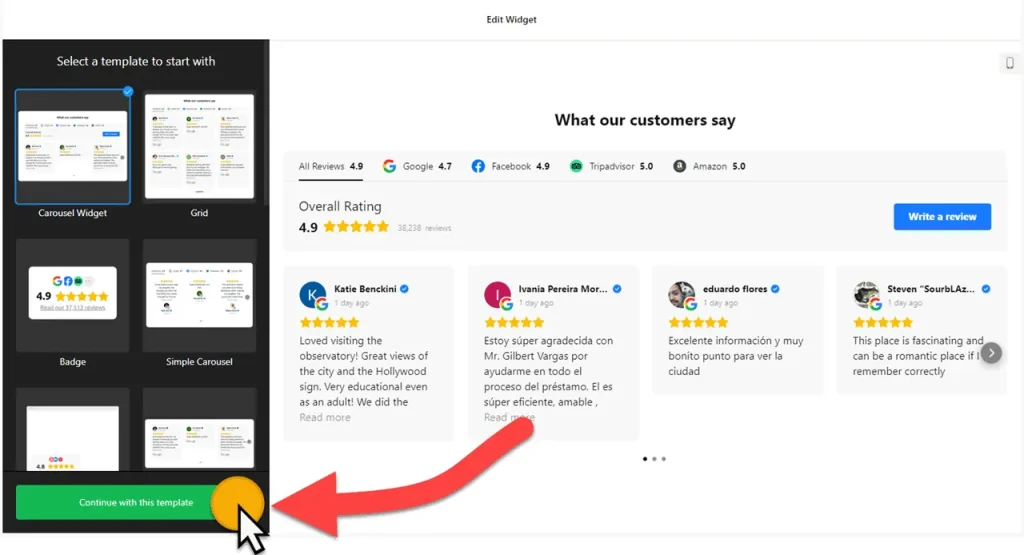
- Tip: put the star rating and review count right under the “Add to cart” button, and the full reviews lower on the page. The rating answers “is it good?” at the moment of decision.
- Show the honest mix. A 4.6 with a few critical reviews is more believable than a wall of five stars, and replying to the negative ones shows people you stand behind what you sell. More ideas in 9 ways to show reviews and testimonials on your website.
2. A free-shipping announcement bar
“Extra costs too high” was the top reason in Baymard’s survey by a wide margin, and 12% of shoppers said they left because they couldn’t see or calculate the total cost up front. The fix starts long before checkout: tell people what shipping costs on every page.
An announcement bar is a thin strip at the top of the site for one short message, such as “Free shipping on orders over $50” or “Order by 2 pm for same-day dispatch.” It has a ready-made free-shipping template, can sit at the top of the page or float at the top or bottom, and can be scheduled so a holiday message switches itself off.
Tip: if you don’t offer free shipping, say what it costs instead (“Flat $5 shipping in the US”). A clear number beats a surprise at checkout.
3. An FAQ section for shipping, returns and sizing
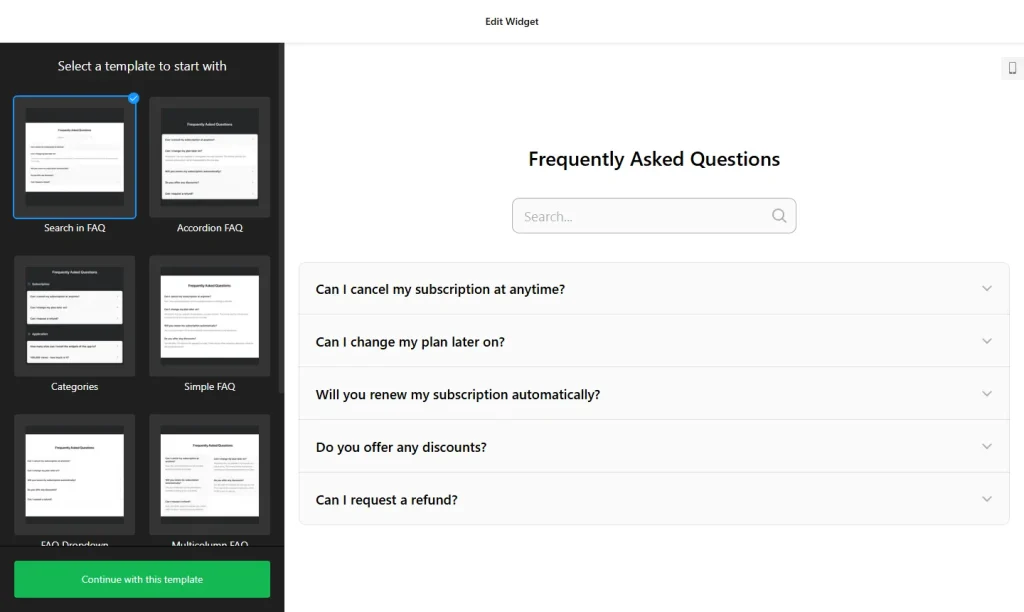
Slow delivery and unsatisfying return policies were also on Baymard’s list. Often the policy is fine and the shopper just couldn’t find it. Answer the same five or six questions on every product page: how long delivery takes, what it costs, how returns work, which size to pick, and how to get in touch.
An FAQ widget shows those answers in a tidy accordion, list or multicolumn layout. You can group questions into categories such as Shipping, Returns and Sizing, and answers support links, so “See our full returns policy” can point to the page with the details. Edit an answer once and every page that shows the widget updates.
4. A chat button for pre-sale questions
Some questions don’t fit an FAQ: “Will this fit a 2019 model?”, “Can you gift-wrap it?” A shopper who gets a quick answer often buys. One who has to email and wait often doesn’t.
A WhatsApp chat button opens a conversation with your business number. You can show it as a floating bubble or an inline button, and set the days and hours you’re available. If you’d rather not answer every message yourself, an AI chatbot can be trained on your website, product details and FAQ files, and answers the routine questions around the clock. Not sure which to choose? Compare them in WhatsApp vs Messenger vs live chat.
5. An email sign-up popup
Most first-time visitors won’t buy on their first visit. The ones who leave an email address can still buy next week, when you send them a new collection or a restock alert.
A popup widget has templates for newsletter sign-ups, coupons and exit intent. You decide what triggers it (time on page, scroll depth, a click or exit intent), which pages and devices it shows on, and how often the same visitor sees it.
Tip: show it once per visitor, after they’ve had time to look around, and never on the cart or checkout page. A popup that covers the “Add to cart” button on a phone costs more sales than it brings in.
6. A spin-to-win wheel (used carefully)
A prize wheel is a more playful version of the sign-up popup: the visitor enters an email address, spins, and wins a discount or a gift.
The spin the wheel widget takes up to 10 prizes, each with its own promo code, and lets you set how often each prize can come up. You can ask for an email before the spin, limit spins per visitor, and schedule the wheel for the dates of a campaign.
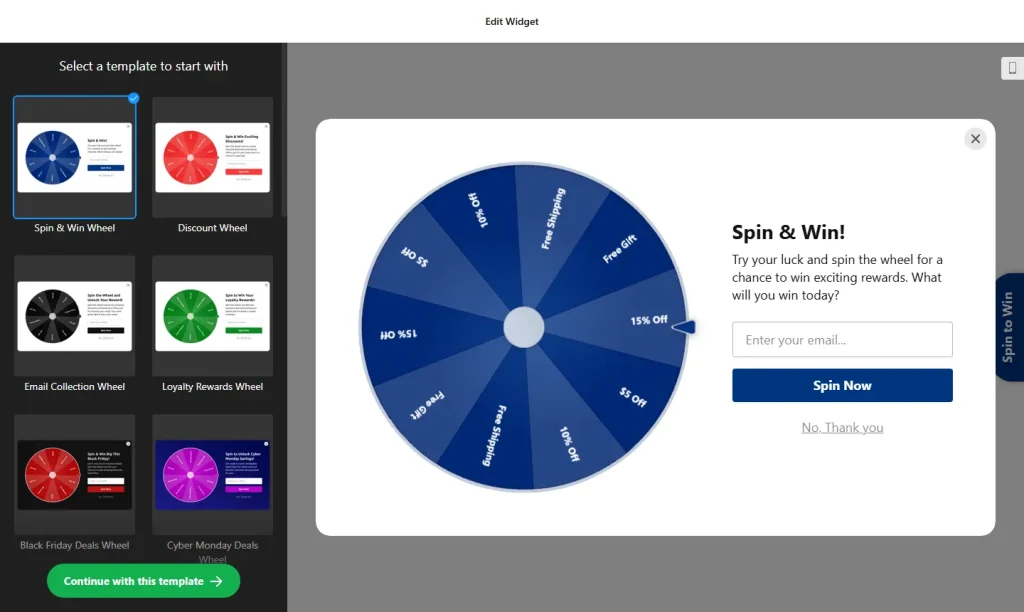
Keep it fair: every prize on the wheel should be winnable, the terms (minimum order, expiry date) should be visible before someone spins, and the codes must work at checkout. Promotion rules differ by country, so check what applies to you. Use either the wheel or the sign-up popup at one time, not both.
7. A countdown timer for real deadlines
When a sale really ends on Sunday at midnight, saying so helps shoppers who were going to buy anyway get it done in time. A countdown timer can sit inline next to the price or as a bar at the top or bottom of the page, and when it reaches zero it can hide itself, show a message, or redirect to another page.
Only use it for a real deadline. A clock that resets every time someone reloads the page is listed as a “baseless countdown timer” in the US Federal Trade Commission’s report Bringing Dark Patterns to Light, and shoppers who notice it stop trusting everything else on the page.
8. Sales notifications (from real orders)
Small popups like “Anna from Leeds bought the linen shirt” tell new visitors that real people buy from you. A sales notification widget shows them in a corner of the screen, with control over the delay before the first one, how long each stays up, and the gap between them. You can link each notification to the product it mentions.
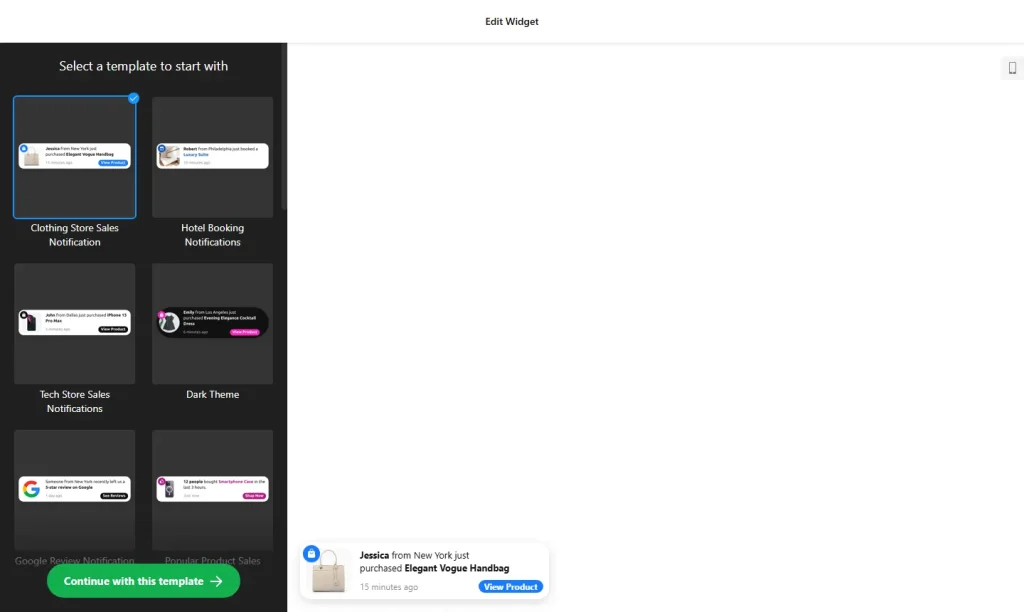
You add the notifications yourself, which means it’s on you to keep them true. The same FTC report lists “false activity messages” and “false low stock messages” as deceptive design, and consumer-protection rules in many countries say the same. Use real recent orders, update them regularly, and turn the popups off on the checkout page.
9. A customer photo feed
Studio photos show what a product looks like. Customer photos show it on a real person, in a real home. An Instagram feed widget can show posts from your account or from a hashtag, filter posts by keyword or hashtag, and add call-to-action buttons to posts, for example “Shop now.”
Tip: give customers a branded hashtag on the packing slip, and ask permission before featuring someone’s photo. If your customers are more active elsewhere, a TikTok feed or a social feed that mixes several platforms works the same way.
10. A cookie consent banner
Almost every online store runs analytics and ad pixels, and many shoppers now expect to be told about it. In places such as the EU and the UK, non-essential cookies generally need the visitor’s consent first. A cookie consent widget adds a banner with your message and a link to your cookie policy, in a layout that fits your store.
This isn’t legal advice: what you need depends on where your customers are and which tools you run. Whether trackers actually wait for consent also depends on how your analytics and ad tags are set up.
Bonus: 5 more widgets worth adding
- Age verification: an age gate for alcohol, vaping, CBD and other restricted products, with templates for each and a set minimum age such as 18 or 21.
- Calculator: shipping-rate or product price calculators that answer “how much will this cost me?” before the cart.
- Video gallery: product demos and unboxing clips from YouTube, TikTok, Vimeo and more in one gallery.
- PayPal button: sell a single product, take a pre-order deposit or offer a subscription from any page, even without a full store platform.
- Back to top button: a small arrow that saves thumbs on long category pages.
Where to put each widget
Most of these widgets belong on product pages, because that’s where shoppers decide. Answer the cost, trust and delivery questions there, keep the persuasion tools away from checkout, and the page reads like this:
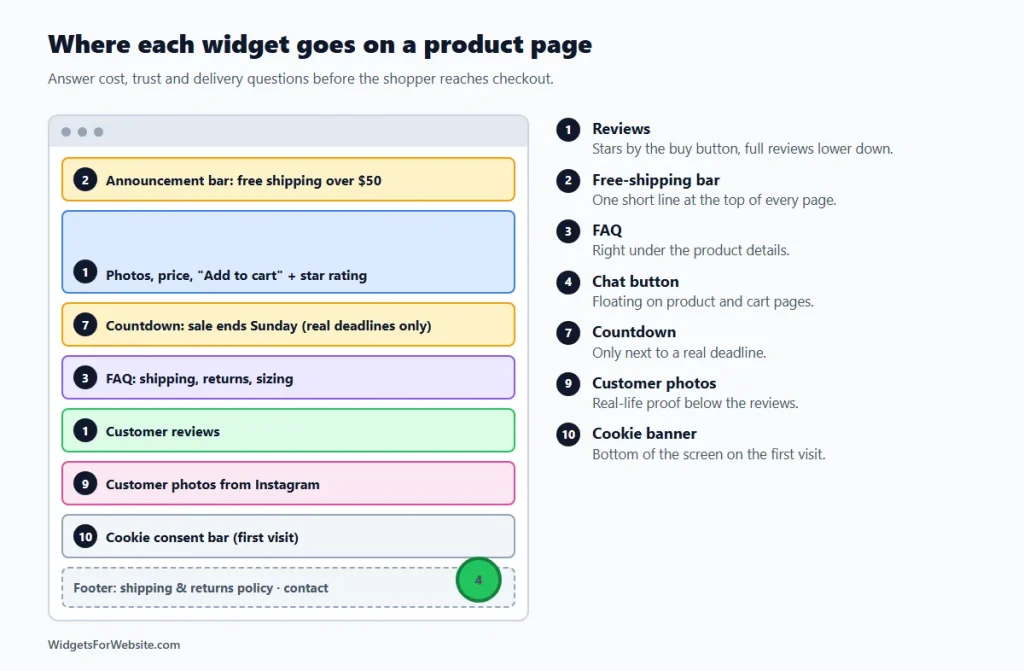
- Top of every page: the free-shipping announcement bar.
- Next to “Add to cart”: the star rating and review count, with full reviews lower down.
- Under the product details: the FAQ about shipping, returns and sizing.
- Below the reviews: customer photos.
- Floating in a corner: the chat button, on product and cart pages.
- Only during a real sale: the countdown, next to the price or as a top bar.
- Site-wide but timed: one email popup or prize wheel, after a delay or on exit intent, never on checkout.
- Small, in a bottom corner: sales notifications from real orders, turned off on checkout.
- On the first visit: the cookie consent bar at the bottom of the screen.
How to add these widgets to your website
Every widget above works the same way: open the builder, pick a template, customize it, and copy the embed code. Then paste the code where you want it to appear. On Shopify that’s a Custom Liquid section in the theme editor, added to the product template or the page you want. On WooCommerce and WordPress it’s a Custom HTML block. Our guide on how to add embed code to any website builder shows where that element is on each platform, and the Wix and Squarespace roundups cover those builders in more detail.
Building a widget is free. The free plan covers one widget with up to 200 views a month and shows Elfsight branding. That’s enough to try a widget, but a store with steady traffic will usually need a paid plan, which starts at $5 a month billed yearly.
Keep it fast. Product pages need to load quickly on a phone. Start with the widgets that answer the biggest questions (reviews, shipping costs and the FAQ), test the page on your own phone, and only then add extras. Our guide do website widgets slow down your site? shows how to keep pages fast.
Running a restaurant or a local shop as well? See the 8 website widgets every restaurant needs in the same series.
Frequently asked questions
Which widgets should a new online store add first?
Start with reviews, a clear shipping message (such as a free-shipping bar) and an FAQ about delivery and returns. They answer the cost, trust and delivery questions behind many avoidable checkout drop-offs. Add a chat button and an email sign-up popup next.
Do these widgets work with Shopify?
Yes. Each widget gives you an embed code. In Shopify, paste it into a Custom Liquid section in the theme editor on the product template or page where you want it. The same code works on WooCommerce, Wix, Squarespace and Webflow.
Are countdown timers and “someone just bought” popups allowed?
They’re fine when they’re true. A timer should count down to a real deadline, and sales notifications should come from real orders. The US Federal Trade Commission lists fake countdown timers, false activity messages and false low-stock claims as deceptive dark patterns, and many other countries have similar consumer-protection rules.
Will these widgets slow down my store?
A few well-chosen widgets have little effect. Avoid stacking several popups, feeds and video players on the same page, keep the checkout free of extras, and test your product pages on a phone after adding each widget.
Are these ecommerce widgets free?
You can build every widget for free. The free plan covers one widget with up to 200 views a month and shows Elfsight branding. A store with steady traffic will usually need a paid plan, which starts at $5 a month billed yearly.
Start with your reviews
If you add one widget today, make it your reviews, placed next to the “Add to cart” button. Then add a shipping message and an FAQ, and work down the list, or browse the full library of free HTML widgets.
Build your first widget for free
Pick a template, customize it in your browser and paste the code into your website. The free plan covers one widget with up to 200 views a month.
Browse all 85 widgets